 WhatsApp: +86 16626708626
 Email:
 Phone: +86 16626708626
Description
Key Technical Specifications
| Parameter | Specification |
|---|---|
| Manufacturer | ADLINK Technology |
| Model | MXE-5104/SSD32G-S |
| Product Family | Matrix MXE-5000 |
| Product Type | Fanless embedded computer |
| Processor | Intel Core 2 Duo P8400, 2.26 GHz |
| Chipset | Intel GM45 and ICH9-M |
| Standard Memory | 2 GB DDR3 SO-DIMM |
| Maximum Memory | Up to 4 GB DDR3 |
| Storage | Factory-installed 32 GB SATA SSD option |
| DC Input | Isolated 9–24 V DC |
| Ethernet | Four Gigabit Ethernet ports |
| Serial Interfaces | Two RS-232 and two RS-232/422/485 |
| USB | Six USB 2.0 ports |
| Display | DVI-I connector supporting analog and DVI-D signals; dual-display capability |
| Watchdog | Hardware watchdog timer |
| Dimensions | 248 × 185 × 85 mm |
| Weight | Approximately 3.7 kg |
| Mounting | Wall mount |
| Standard Operating Temperature | 0°C to 50°C |
| Extended Operating Temperature | −20°C to +70°C with the appropriate option and industrial SSD |
| Storage Temperature | −40°C to +85°C, excluding installed storage media |
| Humidity | Approximately 95% at 40°C, noncondensing |
| Vibration | Up to 5 Grms with CF or SSD storage |
| Compliance | CE, FCC Class A, and IEC 60945 listed in the datasheet |
Specification notes: These values come from the MXE-5104 series documentation, not an independently inspected unit. Confirm the exact CPU, memory, storage, temperature option, and interface configuration against the product label and purchase documentation.
Product Introduction
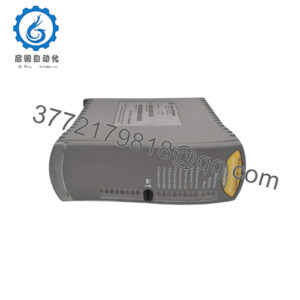
The ADLINK MXE-5104/SSD32G-S is a fanless embedded computer in the Matrix MXE-5000 family. This configuration combines the MXE-5104 platform with a factory-installed 32 GB SATA solid-state drive. Its integrated Ethernet, serial, USB, and display interfaces support industrial data acquisition, equipment monitoring, and marine computing applications.
The platform uses an Intel Core 2 Duo processor and an isolated DC power input. Its main value in a legacy installation is the ability to retain an existing hardware platform and its established software environment. Because ADLINK lists the MXE-5000 series as end of life, verify operating-system support, driver availability, storage condition, and interface compatibility before selecting a replacement.
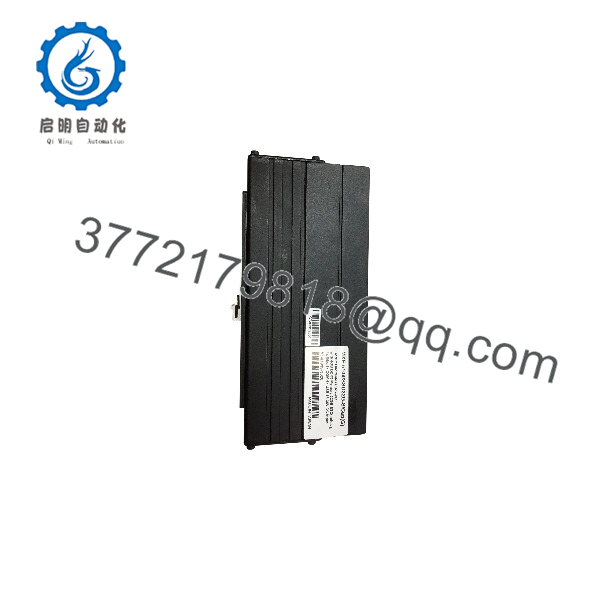
MXE-5104/SSD32G-S
MXE-5104/SSD32G-S
Installation & Configuration Guide
The MXE-5104 is a complete embedded computer, not a plug-in PLC module. Replacement work involves the DC supply, serial and Ethernet connections, display peripherals, operating system, and application software.
Stage 1: Pre-Installation Preparation
Estimated hands-on time: 15–30 minutes, excluding shutdown and backup duration.
- Notify operations and schedule a controlled shutdown of the equipment or system using the computer.
- Record the full model number, serial number, memory configuration, SSD identification, and installed operating system.
- Back up application software, configuration files, device drivers, network settings, and any locally stored process data.
- Record Ethernet IP addresses, subnet masks, gateway settings, serial-port assignments, and connected-device parameters.
- Photograph the power connector, network cabling, serial wiring, display connection, and mounting arrangement.
- Verify the replacement’s supply-voltage requirements, physical dimensions, storage configuration, and software compatibility.
Tools: Appropriately rated multimeter, insulated screwdriver, cable labels, ESD protection, backup media, and the existing system’s software and configuration records.
⚠️ Do not assume that a replacement SSD contains the original operating system or application image. Confirm the software installation and recovery procedure before removing the existing computer.
Stage 2: Removing the Existing Computer
Estimated hands-on time: 15–25 minutes.
- Shut down the operating system using its normal procedure.
- Disconnect the DC supply and any auxiliary power sources.
- Verify that the power connector is de-energized before handling the wiring.
- Label and disconnect Ethernet, serial, USB, display, and other peripheral cables.
- Release the wall-mount hardware and remove the computer without placing strain on the connectors.
- Inspect the mounting surface, power connector, grounding arrangement, and cable insulation.
- Retain the original computer and its SSD until the replacement has passed functional testing.
Stage 3: Installing the Replacement
Estimated hands-on time: 20–40 minutes.
- Confirm that the replacement is the correct MXE-5104 configuration and has the required 32 GB SSD.
- Verify the isolated DC input and supply polarity against the connector markings and OEM documentation.
- Secure the computer using the appropriate wall-mount arrangement.
- Reconnect the Ethernet, serial, USB, and display cables according to the recorded wiring layout.
- Check the network topology, serial-device connections, and any attached control-system interfaces.
- Inspect cable retention, ventilation clearance, and access to the computer’s power and service connections.
- Verify that the replacement’s operating system and application software match the requirements of the installed equipment.
Installation checklist
Stage 4: Power-On and Functional Testing
Estimated hands-on time: 30–60 minutes if the operating system and applications are already configured.
- Verify the DC supply and connector wiring before applying power.
- Power on the computer and observe its status indicators and boot behavior.
- Confirm that the operating system starts without storage errors or unexpected recovery prompts.
- Verify the processor, installed memory, SSD capacity, and device-driver status.
- Test each required Ethernet port and confirm the expected IP configuration.
- Verify RS-232 and RS-232/422/485 communication with the connected equipment.
- Confirm USB peripherals, display output, watchdog behavior, and application startup where applicable.
- Run a controlled functional test of the application that depends on the computer.
- Record test results and retain the original configuration for rollback until the system has been accepted.
⚠️ If the computer fails to boot, check the SSD image, BIOS configuration, memory, and power input before replacing additional components. If serial communication fails, verify port assignment, baud rate, parity, stop bits, and RS-232/422/485 wiring mode.
Frequently Asked Questions (FAQ)
Q1: What is the ADLINK MXE-5104/SSD32G-S used for?
It is a fanless embedded computer designed for industrial and marine computing environments. Its integrated network, serial, USB, and display interfaces support equipment monitoring, data collection, and legacy control-system applications. The series documentation lists IEC 60945 maritime compliance.
Q2: Is the MXE-5104/SSD32G-S discontinued?
Yes. ADLINK identifies the MXE-5000 series as end of life. For a replacement project, confirm the availability of service parts, compatible operating systems, drivers, and recovery images before committing to the existing platform.
Q3: Does the MXE-5104/SSD32G-S have a 32 GB SSD?
The /SSD32G-S configuration is listed as an MXE-5104 variant with a factory-installed 32 GB SATA SSD. Confirm that the specific unit being supplied has the correct drive installed and that its contents match the intended application.
Q4: What power supply does the MXE-5104 use?
The MXE-5104 datasheet specifies an isolated DC input rated for 9–24 V DC. The exact input and connector arrangement should be checked against the unit’s label and the applicable hardware documentation before power is applied.
Q5: Can I replace the MXE-5104/SSD32G-S with a newer industrial PC?
Potentially, but physical and electrical compatibility alone are not sufficient. The replacement must support the existing operating system or application migration, required serial interfaces, Ethernet topology, watchdog behavior, display connection, and software licensing. Test the replacement offline before connecting it to a live control system.
Q6: Does the MXE-5104 support Windows 10 or Windows 11?
The MXE-5104 datasheet lists Windows XP, Windows XP Embedded, Windows 7, and Linux as software options. It does not establish official Windows 10 or Windows 11 support. Verify processor architecture, chipset drivers, BIOS support, application requirements, and licensing before attempting an operating-system upgrade.
Q7: How can I verify the condition and availability of a replacement?
Request a photograph of the actual unit’s nameplate and serial number, confirmation of its memory and SSD configuration, and a report of the boot and interface tests performed. Ask the supplier to specify whether the unit is new surplus or refurbished, along with the warranty, return terms, and dispatch lead time.