 WhatsApp: +86 16626708626
 Email:
  Phone: +86 16626708626
Description
3. Key Technical Specifications
| Parameter | Value |
|---|---|
| Product Model | 5420F-24P-4XE |
| Manufacturer | Extreme Networks |
| Product Family | ExtremeSwitching 5420 Series |
| Product Type | Layer 2/Layer 3 Managed Ethernet Switch |
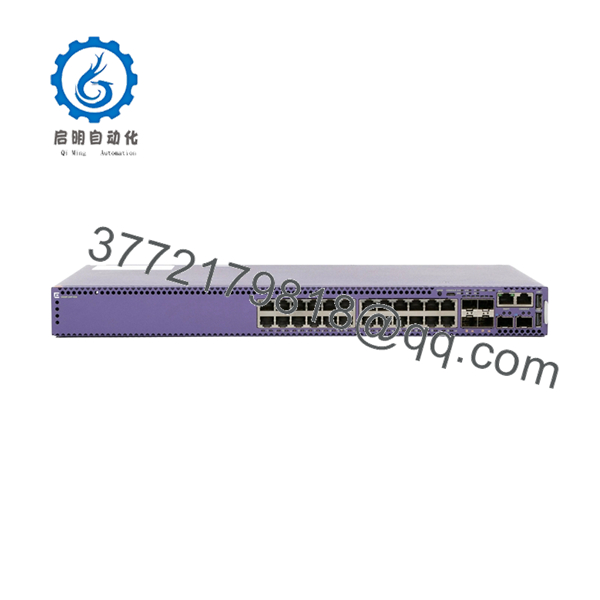
| Access Ports | 24 × 10/100/1000BASE-T IEEE 802.3at PoE+ (30 W) |
| Uplink Ports | 4 × 1/10 GbE SFP+ (MACsec capable) |
| Stacking Ports | 2 × SFP-DD Universal/Stacking ports |
| Out-of-Band Management | 1 × 10/100/1000BASE-T management port |
| Console Interfaces | RJ-45 serial console and USB Micro-B console |
| USB Ports | 2 × USB Type-A |
| Operating System | Switch Engine (formerly EXOS) or Fabric Engine (formerly VOSS) |
| Stacking Capacity | Up to 8 switches with 80 Gbps stacking bandwidth |
| Security | IEEE 802.1AE MACsec on access and uplink ports |
| PoE Budget | 380 W (internal PSU), up to 720 W with optional secondary PSU |
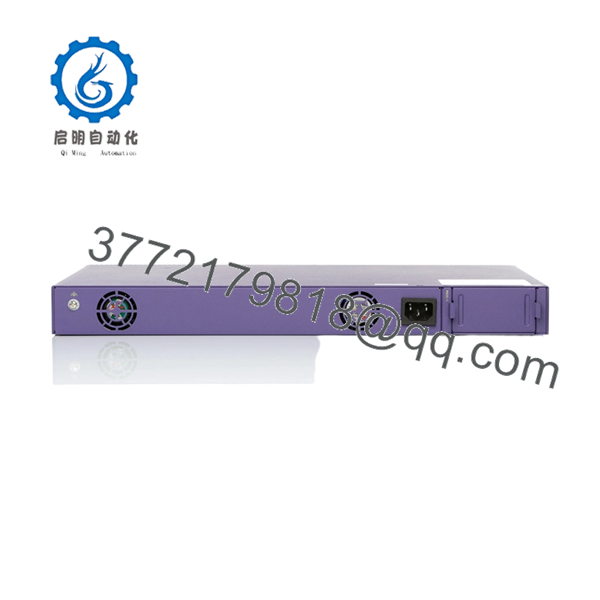
| Cooling | Fixed redundant fan modules |
| Power Supply | Internal AC PSU with optional secondary PSU slot |
| Mounting | 1U Rack Mount |
Compatibility Note: The 5420F is a Universal Hardware Platform. It can operate with either Switch Engine (EXOS) or Fabric Engine (VOSS), but only one operating system can be active at a time. Verify the installed OS before replacing an existing switch because configuration files are not interchangeable between the two operating systems.
4. Product Introduction
The Extreme Networks 5420F-24P-4XE is an enterprise-class managed Ethernet switch designed for campus access, industrial Ethernet, healthcare, education, and enterprise edge deployments. It provides twenty-four Gigabit PoE+ access ports, four 10 Gigabit SFP+ uplinks, dedicated stacking interfaces, and integrated MACsec encryption for secure network access.
One of the distinguishing characteristics of the 5420 Series is its dual-persona architecture. The same hardware can boot either Switch Engine or Fabric Engine, allowing migration between traditional Ethernet switching and Fabric Connect architectures without replacing the hardware. Before commissioning, verify the selected operating system, software release, and existing network design.

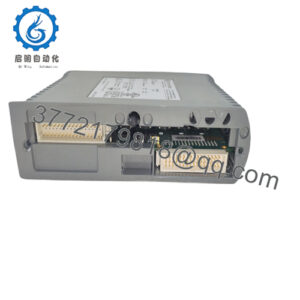
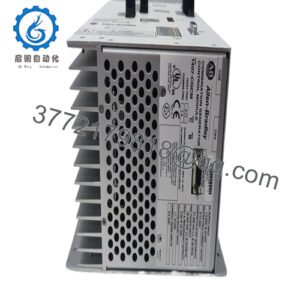
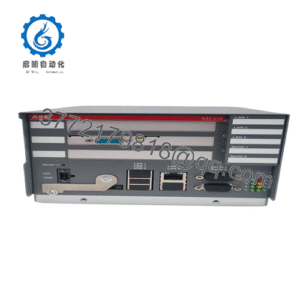
- 5420F-24P-4XE
- 5420F-24P-4XE
5. Installation & Configuration Guide
Stage 1 – Pre-Installation Preparation (Estimated Time: 10 Minutes)
⚠️ Safety First
- Notify plant operations of the scheduled outage.
- Confirm connected automation equipment has entered a safe operating state.
- Apply Lock-Out/Tag-Out procedures.
- Disconnect AC power.
- Wait 5 minutes before servicing the switch.
Tools Required
- Grounded ESD wrist strap
- PH1 screwdriver
- Fluke 115 digital multimeter
- Fiber inspection and cleaning kit
- Cable labels
- Smartphone for documenting connections
Data Backup
- Save both the running and startup configuration.
- Record:
- Operating System (Switch Engine or Fabric Engine)
- Software version
- Management IP address
- VLAN database
- Static and dynamic routing configuration
- PoE allocation
- Stacking configuration
- Photograph every cable connection.
- Record installed SFP+ transceiver models.
Stage 2 – Removing the Existing Switch (Estimated Time: 10 Minutes)
- Disconnect AC input power.
- Label every copper and fiber connection.
- Remove SFP+ modules using the release latch.
- Disconnect console and management cables.
- Remove rack mounting screws.
- Slide the switch straight out of the rack.
⚠️ Do not remove the switch by pulling on fiber patch cords or SFP modules.
Inspect:
- Power connector
- SFP cages
- Stacking ports
- Rack grounding connection
Retain the original switch until the replacement completes production verification.
Stage 3 – Installing the Replacement (Estimated Time: 10 Minutes)
- Wear a grounded ESD wrist strap.
- Verify the replacement model is 5420F-24P-4XE.
- Confirm the switch boots the correct operating system.
- Install the switch into the rack.
- Install any optional secondary PSU if required.
- Clean and reinstall SFP+ modules.
- Restore the saved configuration.
- Reconnect network and stacking cables.
Self-Checklist
- Model verified
- Operating system confirmed
- Software version documented
- Secondary PSU installed (if required)
- Stacking cables connected
- Configuration restored
- MACsec configuration verified
Stage 4 – Power-On & Testing (Estimated Time: 15 Minutes)
Pre-Power Check
- Measure AC input voltage.
- Verify chassis grounding.
- Confirm power supply status LEDs.
Power-On Steps
- Apply AC power.
- Observe Power, Fan, and Status LEDs.
- Connect through the console interface.
- Verify:
- Operating system
- Software version
- Port status
- VLAN database
- PoE allocation
- Stacking status
- Management connectivity
- Test communication with PLCs, HMIs, servers, and SCADA hosts.
- Verify SFP+ uplinks and MACsec operation if deployed.
⚠️ Troubleshooting Note
Switch boots but configuration appears incorrect
- Confirm the switch is running the same operating system as the original unit.
- A Switch Engine configuration cannot be restored directly onto Fabric Engine, and vice versa.
PoE devices remain offline
- Verify the available PoE budget.
- Check whether a secondary PSU is required for the expected power demand.
Engineering Notes from Field Experience
❗ Operating System Mismatch
This is the issue that catches experienced engineers more often than hardware failures. I’ve seen a replacement 5420 boot perfectly, yet none of the saved configuration would load because the replacement was running Fabric Engine while the original switch used Switch Engine. Before you remove the old switch, document both the software version and the operating system. That simple check can save several hours of troubleshooting.
❗ PoE Budget Planning
The internal power supply provides 380 W of PoE. If your installation powers multiple wireless access points, IP cameras, or VoIP phones, that may not be sufficient. Adding the optional secondary PSU increases the available PoE budget to 720 W. Calculate the expected load before scheduling the replacement.
❗ Stacking Configuration
Take photographs of the stacking cables before disconnecting them. Reversing cable orientation or changing stack member order can delay startup and complicate troubleshooting, particularly in larger campus deployments.
❗ Optical Compatibility
Although the SFP+ ports support standard 1 Gb and 10 Gb optics, always verify the approved transceiver list before installation. Community reports show that certain third-party copper SFP modules may not establish links consistently, even when they are recognized by the switch.
❗ Electrostatic Discharge (ESD)
I once watched an engineer install a replacement switch during winter without wearing an ESD strap because “it’ll only take a minute.” The switch powered up normally, but one uplink port became intermittent several days later. Use grounded ESD protection throughout the installation.
Keep these checks in mind and you’ll avoid most of the rework that turns a planned 30-minute maintenance window into an all-day outage.
6. Frequently Asked Questions (FAQ)
Q1. Can I hot-swap the 5420F-24P-4XE?
No. Although the platform supports redundant network architectures, the switch itself should not be removed while energized. Shut down the unit before replacement to prevent unexpected network interruptions.
Q2. Can this switch run both EXOS and VOSS?
Yes. The 5420 Series is a Universal Hardware Platform. It supports Switch Engine (formerly EXOS) and Fabric Engine (formerly VOSS), but only one operating system can be active at any given time. Choose the correct OS before restoring configuration files.
Q3. Why are my PoE devices not receiving power?
The first item to check is the available PoE budget. A single internal PSU supports 380 W, while adding the recommended secondary PSU increases the available budget to 720 W. Also verify the powered devices comply with IEEE 802.3at requirements.
Q4. Will replacing the switch preserve my configuration?
No. Always export the running and startup configurations before maintenance. Also document whether the switch uses Switch Engine or Fabric Engine, since configurations cannot be transferred directly between the two operating systems.
Q5. Why is New Surplus equipment priced below OEM list pricing?
New Surplus inventory generally originates from canceled infrastructure projects, distributor overstock, or unused maintenance stock. The hardware has not entered production service, but it may have been stored for an extended period. Verify serial numbers, inspection records, and functional test documentation before deployment.
Q6. What quality inspections should be completed before shipment?
A documented inspection process should include:
- OEM serial number verification and traceability.
- Anti-counterfeit inspection.
- Visual inspection for scratches, corrosion, UV discoloration, or repair marks.
- Installation into a genuine Extreme 5420 Series test environment.
- Power-on self-test.
- Copper, SFP+, stacking, and management interface testing.
- PoE load testing with continuous operation for more than 24 hours.
- Insulation resistance testing (where applicable).
- Operating system and software version documentation.
- Final QC approval, ESD packaging, protective cushioning, and heavy-duty export packaging.
Test reports, startup photographs, and power-on videos should be available upon request before shipment.