 WhatsApp: +86 16626708626
 Email:
  Phone: +86 16626708626
Description
3. Key Technical Specifications
| Parameter | Value |
|---|---|
| Model | WM3700 |
| Manufacturer | Extreme Networks |
| Product Family | Summit WM3000 Series |
| Product Type | Wireless LAN Controller |
| Primary Function | Centralized WLAN management and AP control |
| Managed Devices | Compatible with supported Altitude/IdentiFi access points running WiNG 5 |
| Ethernet Interfaces | Gigabit Ethernet management/network interfaces |
| Wireless Platform | WiNG 5 Architecture |
| Management | CLI, Web UI, SNMP, SSH |
| Security Features | WPA/WPA2 Enterprise, 802.1X, RADIUS integration |
| QoS | WMM, Layer 2–Layer 4 traffic classification |
| Operating Temperature | 0 °C to 40 °C (32 °F to 104 °F) |
| Operating Humidity | 5%–85% non-condensing |
| Regulatory Compliance | UL, CE, FCC, RoHS, WEEE |
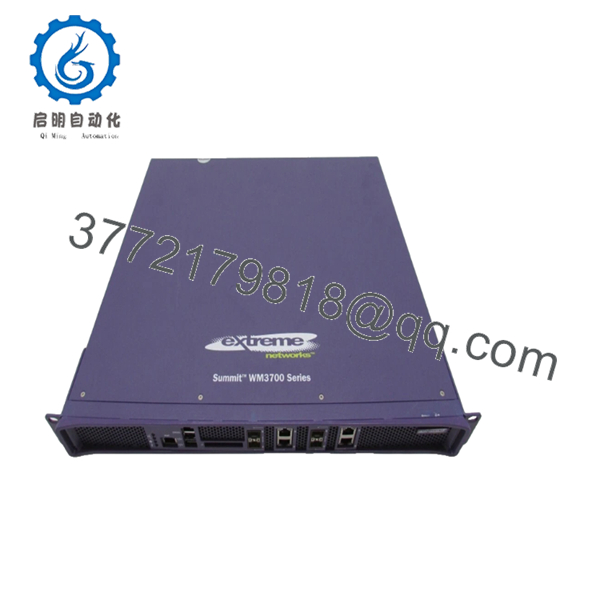
The WM3700 is part of the Summit WM3000 controller family and was designed to centrally manage enterprise wireless networks using WiNG 5 software. It supports centralized configuration, RF management, security policy enforcement, QoS, and WLAN services for compatible access points.
4. Product Introduction
The Extreme Networks WM3700 is an enterprise wireless LAN controller developed for centralized management of campus and branch wireless networks. It provides configuration management, RF optimization, security enforcement, guest networking, and firmware management for supported Extreme wireless access points.
The controller was widely deployed in education, healthcare, manufacturing, and enterprise campus environments where centralized administration of dozens or hundreds of access points simplified daily operations. Although the platform is now considered legacy hardware, it remains a practical replacement for organizations maintaining existing WiNG 5 wireless infrastructures.

- WM3700
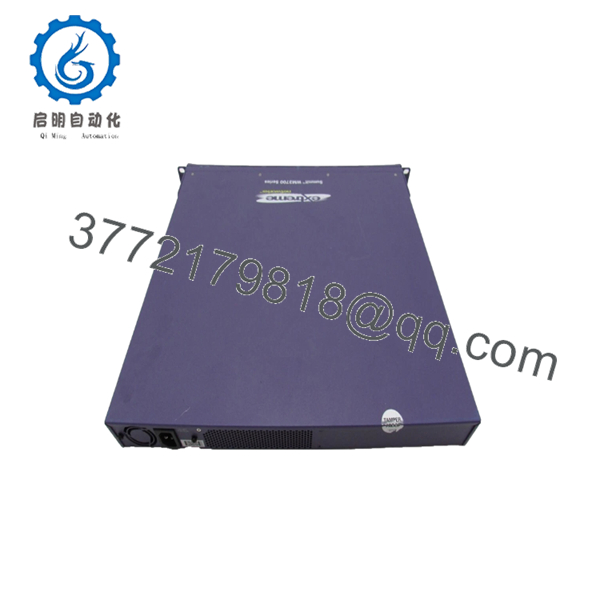
- WM3700
5. Installation & Configuration Guide
Stage 1 – Pre-Installation Preparation (10 Minutes)
⚠️ Safety First
- Notify network administrators of the planned maintenance.
- Back up the complete controller configuration.
- Export AP profiles and WLAN configurations.
- Record the current firmware version.
- Shut down the controller gracefully before disconnecting power.
Tools Required
- Grounded ESD wrist strap
- Phillips screwdriver
- Console cable
- Laptop with terminal software
- Ethernet patch cables
- Smartphone for documenting cable locations
Data Backup
- Export controller configuration.
- Save AP adoption database.
- Record management IP address.
- Document VLAN assignments.
- Photograph network connections.
Stage 2 – Removing the Existing Controller (5 Minutes)
- Disconnect client traffic if redundancy is unavailable.
- Label all Ethernet interfaces.
- Disconnect power.
- Remove rack mounting screws.
- Carefully slide the controller from the rack.
- Inspect power and network connectors.
⚠️ Do not decommission the original controller until all managed APs have successfully joined the replacement unit.
Stage 3 – Installing the New Controller (10 Minutes)
- Wear an ESD wrist strap.
- Verify the replacement model is WM3700.
- Install the controller in the rack.
- Connect management and network interfaces.
- Restore power.
- Connect through the console.
- Restore the saved configuration.
Installation Checklist
- ☑ Correct model verified
- ☑ Configuration restored
- ☑ Network interfaces connected
- ☑ Management IP reachable
- ☑ AP discovery enabled
Stage 4 – Power-On & Testing (15 Minutes)
Pre-Power Checks
- Verify AC power.
- Confirm Ethernet connectivity.
- Verify switch VLAN configuration.
- Confirm DHCP, DNS, and RADIUS server reachability.
Startup Procedure
- Power on the controller.
- Verify the boot process completes normally.
- Log in through the Web UI or CLI.
- Confirm the firmware version.
- Verify access points begin registration.
- Test SSID broadcasting.
- Confirm client authentication.
- Verify roaming and WLAN performance.
⚠️ Troubleshooting Notes
- Access points fail to register: Verify AP compatibility and controller firmware.
- Authentication failures: Confirm RADIUS connectivity and shared secrets.
- SSID not broadcasting: Verify WLAN profiles and AP group assignments.
- Firmware mismatch: Upgrade compatible APs before attempting adoption.
6. Frequently Asked Questions (FAQ)
Q1. What is the primary function of the WM3700?
The WM3700 is an enterprise Wireless LAN Controller that centralizes the configuration, monitoring, security, firmware management, and RF optimization of supported Extreme wireless access points.
Q2. Can the WM3700 manage newer AP37xx, AP38xx, or AP39xx access points?
No. The WM3700 running WiNG 5 does not support management of the AP37xx, AP38xx, or AP39xx product families. Organizations deploying newer access points should migrate to a supported controller platform.
Q3. Is the WM3700 still available as a new product?
No. The WM3700 is a legacy wireless controller. Current market availability is generally limited to genuine New Surplus inventory and professionally tested refurbished units.
Q4. Will replacing the controller erase my wireless configuration?
Not if you create a complete configuration backup beforehand. Always export the controller configuration, WLAN profiles, AP groups, and security settings before replacing the hardware. After restoration, verify that all managed access points successfully re-adopt to the replacement controller.
Q5. Why won’t my access points connect after replacement?
The most common causes are:
- Firmware incompatibility between the controller and APs.
- Incorrect controller discovery settings.
- VLAN or DHCP configuration errors.
- Invalid RADIUS or authentication settings.
Before replacing hardware, verify software compatibility. I’ve seen deployments where a replacement controller booted correctly, but none of the APs adopted because the firmware revision no longer supported that AP family. Matching controller and AP software versions before installation usually prevents hours of unnecessary troubleshooting.
Q6. Can the WM3700 be deployed in a redundant wireless architecture?
Yes. The WM3700 supports enterprise wireless deployments with redundancy and centralized policy management when configured according to the supported WiNG architecture. During maintenance, always verify failover operation before taking the active controller offline to minimize client disruption.