 WhatsApp: +86 16626708626
 Email:
  Phone: +86 16626708626
Description
3. Key Technical Specifications
| Parameter | Value |
|---|---|
| Manufacturer | GE Fanuc (Emerson) |
| Model | IC754CSX06CTD |
| Product Series | QuickPanel View / QuickPanel Control |
| Product Type | HMI Operator Interface |
| Display Size | 6-inch Color TFT LCD |
| Touchscreen | Analog resistive touchscreen |
| Processor | Intel XScale PXA255, 400 MHz |
| Graphics Accelerator | Silicon Motion SM501 |
| Operating System | Microsoft Windows CE.NET |
| Flash Memory | 64 MB |
| DRAM | 64 MB |
| Retentive Memory | 512 KB battery-backed SRAM |
| Ethernet | Integrated 10/100Base-T |
| Serial Ports | RS-232 / RS-485 |
| Programming Software | Proficy View Machine Edition |
| Power Supply | 24 VDC |
| Operating Temperature | 0 °C to +50 °C |
The IC754CSX06CTD combines a 400 MHz Intel XScale processor, 64 MB Flash, 64 MB DRAM, integrated Ethernet, and Windows CE.NET into a compact 6-inch operator interface designed for industrial machine visualization and local control.
4. Product Introduction
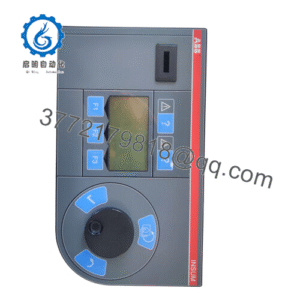
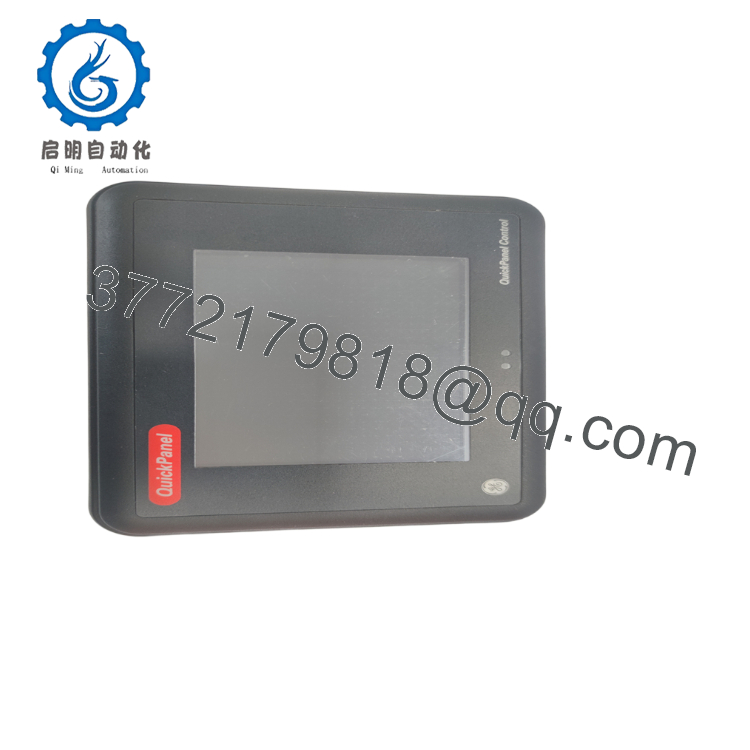
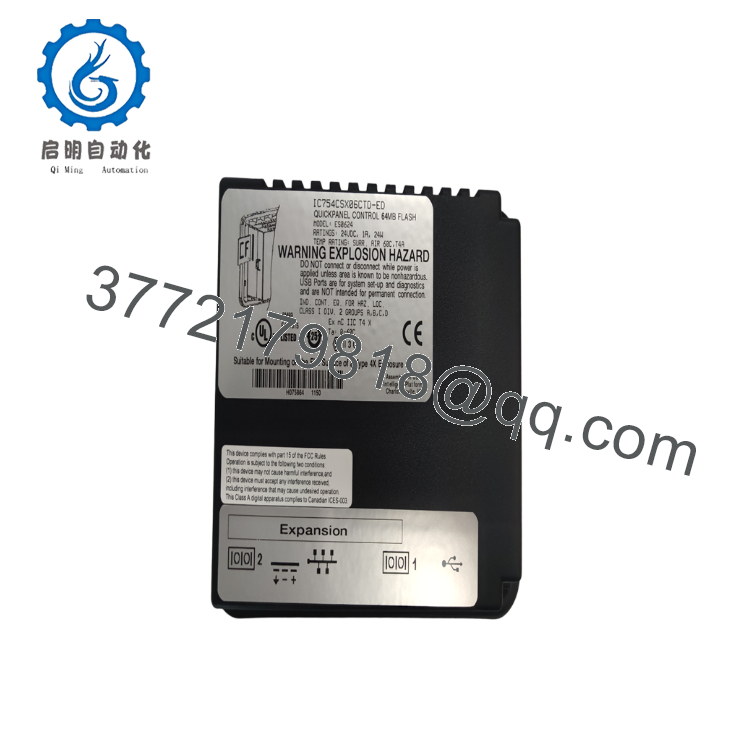
The GE IC754CSX06CTD is a 6-inch QuickPanel View operator interface that combines an industrial HMI, embedded computer, and local control platform in a single enclosure. It provides visualization, alarm management, recipe handling, trending, and operator interaction for GE PACSystems, Series 90 PLCs, and other industrial controllers through standard industrial communication interfaces.
Running Microsoft Windows CE.NET, the IC754CSX06CTD supports applications developed with Proficy View Machine Edition. Its integrated Ethernet and serial interfaces simplify communication with PLCs, drives, and SCADA systems. Although the QuickPanel View family is now considered a legacy platform, it remains widely deployed in manufacturing plants where long-term application compatibility is essential.

- IC754CSX06CTD
- IC754CSX06CTD
5. Installation & Configuration Guide
Stage 1 – Pre-Installation Preparation (10 Minutes)
⚠️ Safety First
- Notify production personnel of the scheduled maintenance.
- Stop the machine using the approved shutdown procedure.
- Apply Lockout/Tagout (LOTO).
- Remove 24 VDC power.
- Wait at least 5 minutes before disconnecting cables.
Tools Required
- Grounded ESD wrist strap
- PH1 screwdriver
- Fluke 115 digital multimeter
- Laptop with Proficy View Machine Edition
- Ethernet cable tester
- Smartphone for documentation
Data Backup
Before removing the terminal:
- Upload the complete HMI application.
- Export communication settings.
- Record the IP address.
- Photograph all wiring connections.
- Record COM port configuration.
- Verify the battery status.
Stage 2 – Removing the Old Terminal (10 Minutes)
- Disconnect the 24 VDC supply.
- Label every communication cable.
- Disconnect Ethernet and serial cables.
- Remove the panel mounting clamps.
- Carefully remove the HMI from the enclosure cutout.
Inspect:
- Terminal block
- Ethernet connector
- Display gasket
- Touchscreen surface
- Rear housing
⚠️ Retain the existing terminal until the replacement has completed full functional testing.
Stage 3 – Installing the New Terminal (15 Minutes)
- Wear an ESD wrist strap.
- Verify the exact model:
IC754CSX06CTD
- Install the terminal into the panel cutout.
- Tighten mounting clamps evenly to avoid distorting the bezel.
- Connect the 24 VDC supply.
- Reconnect Ethernet and serial communication cables.
- Restore the application if required.
Installation Checklist
- Model verified
- Panel gasket seated correctly
- Power polarity confirmed
- Ethernet connected
- Application restored
Stage 4 – Power-On & Functional Testing (20 Minutes)
Pre-Power Checks
- Verify 24 VDC input voltage.
- Confirm protective grounding.
- Inspect communication cables.
- Check touchscreen for visible damage.
Startup Procedure
- Apply 24 VDC power.
- Observe the Windows CE.NET boot sequence.
- Verify the touchscreen calibration.
- Confirm Ethernet communication.
- Download or restore the HMI project if required.
- Test alarm acknowledgment.
- Verify trend displays, graphics, and operator buttons.
⚠️ Troubleshooting Note
If the terminal remains on the startup screen:
- Verify the application project.
- Confirm Flash memory integrity.
- Check the Ethernet configuration.
- Inspect the CompactFlash or storage configuration if used.
- Verify communication driver settings.
SOP Quality Verification
1. Inbound Inspection & Traceability
- Verify OEM serial number.
- Inspect touchscreen for scratches.
- Check bezel, LCD, and housing for damage.
- Confirm traceability records.
2. Live Functional Testing
Testing should be performed using a genuine GE QuickPanel test station.
Verification includes:
- Complete Windows CE boot
- LCD pixel inspection
- Touchscreen calibration
- Ethernet communication
- Serial communication
- HMI application loading
- Continuous operation exceeding 24 hours
- Thermal stability monitoring
A formal functional test report should be generated for each unit.
3. Electrical Testing
- 500 V insulation resistance test (>10 MΩ where applicable)
- Ground continuity verification
- 24 VDC current measurement
- Power consumption verification
4. Firmware Verification
- Record Windows CE version.
- Record QuickPanel firmware revision.
- Verify compatibility with the customer’s Proficy View Machine Edition project.
5. Final QC & Packaging
- QC inspector approval
- Anti-static packaging
- LCD protective film
- Bubble-wrap protection
- Heavy-duty shipping carton
- QC Passed label with inspection date
Test photographs and startup videos should be available upon request.
Technical Pitfalls & Survival Guide
❗ Application Compatibility
One mistake I see repeatedly is assuming every QuickPanel project will load without modification.
Different Proficy View Machine Edition versions may require project conversion. Always archive the original project before migrating to another firmware or engineering software version.
❗ Touchscreen Calibration
Replacing the terminal without recalibrating the touchscreen often leads operators to believe the hardware is defective.
Complete the touchscreen calibration immediately after startup, particularly if the terminal has been stored for several years.
❗ Communication Settings
I’ve seen maintenance teams replace a perfectly good HMI only to discover the replacement shipped with factory-default communication settings.
Before removal, record:
- IP address
- Subnet mask
- Serial baud rate
- PLC node address
- Driver configuration
Those five minutes of documentation can save hours during commissioning.
❗ Windows CE Storage
Windows CE stores portions of the operating system in Flash memory and loads them into DRAM during startup.
Unexpected power removal during application updates can corrupt stored project files. Always perform software updates with a stable power source.
❗ Electrostatic Discharge (ESD)
The LCD controller, processor, and memory devices are sensitive to electrostatic discharge.
Always wear a grounded wrist strap and place the terminal on an ESD-safe work surface during installation.
Keep these checks in mind and you’ll avoid most commissioning delays associated with legacy QuickPanel View terminals.
6. Frequently Asked Questions (FAQ)
Q1. What is the IC754CSX06CTD used for?
It is an industrial Human-Machine Interface (HMI) that provides machine visualization, operator control, alarm management, and communication with PLCs and PACs through Ethernet and serial interfaces.
Q2. Which operating system does this terminal use?
The terminal runs Microsoft Windows CE.NET, with the operating system stored in Flash memory and loaded into DRAM during startup.
Q3. Is the IC754CSX06CTD still manufactured?
No.
The QuickPanel View family has been discontinued and is considered a legacy product. Most available units are New Surplus or professionally tested refurbished inventory. Plan long-term maintenance accordingly.
Q4. Can I replace the terminal without changing the PLC program?
Yes.
In most installations, the PLC application remains unchanged because the HMI only provides visualization and operator interaction. However, you should back up the HMI application and verify communication settings before replacement.
Q5. Which engineering software is required?
The IC754CSX06CTD is engineered using Proficy View Machine Edition. Verify the project version is compatible with the installed firmware before downloading the application.
Q6. What inspections should I request before shipment?
For production-critical applications, request:
- OEM serial number verification
- LCD inspection for dead pixels
- Touchscreen calibration verification
- Ethernet and serial communication testing
- Complete Windows CE boot verification
- 24-hour operational burn-in
- Firmware documentation
- ESD-safe packaging
- Full QC test report
Requesting startup photographs, touchscreen calibration records, and communication test results before shipment can reduce commissioning risk and minimize downtime when maintaining legacy QuickPanel View installations.