 WhatsApp: +86 16626708626
 Email:
  Phone: +86 16626708626
Description
Key Technical Specifications
| Parameter | Specification Value |
| Manufacturer Model No. | 3620004-01 |
| Associated Series / MPN | FP3710-K41-U / FP-3710K Series |
| Display Type | Industrial TFT Color LCD |
| Screen Size | 15.0 Inches (Diagonal) |
| Display Resolution | 1024 × 768 pixels (XGA) |
| Interface Input | DVI-D / Analog RGB (VGA/XGA) |
| Touchscreen Type | Resistive Matrix Touch Panel |
| Power Supply Input | 100–240 V AC / 24 V DC (Model dependent) |
| Enclosure Rating | NEMA 4X / IP65f Front Panel (When mounted) |
| Hazardous Locations | Class I, Division 2, Groups A, B, C, D Certified |
| Country of Manufacture | Japan |
Product Introduction & Supply Chain Strategy
The Pro-face 3620004-01 (FP3710-K41-U Series) is a 15-inch industrial flat panel display designed for heavy-duty process visualization, PC-based automation, and control enclosure integration. Featuring an XGA TFT display and NEMA 4X/IP65 front-bezel protection, it accepts video signal inputs from industrial PCs and host controllers to deliver real-time machine graphics in harsh plant environments.
Maintaining this unit as New Surplus minimizes Total Cost of Ownership (TCO) and mitigates catastrophic plant downtime. Because this model number has been phased out by the manufacturer, relying on worn or refurbished units introduces severe risks such as dim backlights, touchscreen drift, or sudden power supply failure. Sourcing genuine New Surplus ensures full OEM display performance and allows immediate drop-in replacement without expensive enclosure modification or software conversion.
Installation & Configuration Guide
Stage 1: Pre-Installation (Prep & Safety)
- Perform Lock-Out/Tag-Out (LOTO) procedures on the power feeding the display panel cabinet.
- Put on an ESD-grounded wrist strap connected to earth ground before handling the unit.
- Take photos of all cabling, terminal connections, grounding straps, and DIP switch locations on the back of the existing panel.
Stage 2: Removal
- Disconnect the main AC/DC power input cable and protective earth wiring block.
- Unplug the DVI-D / VGA display cable and touch interface communication connector (USB/RS-232C).
- Loosen and remove the panel mounting clamps holding the unit against the cutout frame.
- Carefully extract the old display unit forward out of the cabinet cutout without damaging the enclosure opening.
Stage 3: Installation (Clone & Seat)
- Verify the front panel sealing gasket on the new 3620004-01 unit is properly seated.
- Replicate any hardware DIP switch positions from the old display unit onto the new module (e.g., video input or backlight settings).
- Insert the new 3620004-01 into the panel cutout from the front side.
- Install and tighten the rear mounting clamps crosswise to uniform torque to ensure a NEMA 4X water-tight seal.
Stage 4: Power-On & Testing
- Measure the supply line voltage to ensure it matches the specified rating before applying power.
- Reconnect the ground lead, display video cable, touch interface connector, and main power plug.
- Apply power and verify the power LED lights up and the display renders clear video without flickering.
- Calibrate the touch screen digitizer through the host industrial PC or utility menu to verify precise touch accuracy.
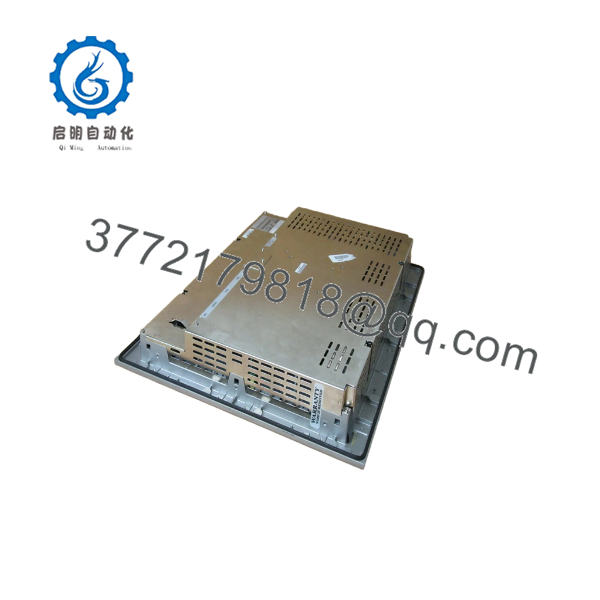
3620004-01
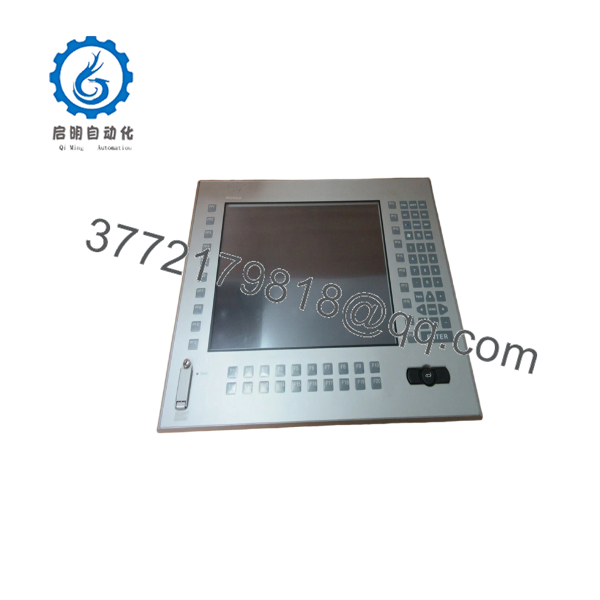
3620004-01
Firmware/Software Versions & Upgrade Notes
- System Integration: As an industrial flat panel display (FP Series), the 3620004-01 acts as a monitor and touch input device for host systems like IPCs or PS/PL Series industrial computers.
- Touch Drivers: Ensure the correct Pro-face Mouse Emulator / Touch Panel Driver (e.g., UPDD or Pro-face FP Touch Driver) is installed on the host PC operating system for correct touch-coordinate tracking.
- Signal Cable Requirements: Always use official Pro-face shielded DVI-D / RGB cables to prevent video noise and EMI interference in high-voltage industrial enclosures.
- Dip Switch Configurations: Check host-side switch configurations (e.g., internal dip switches on connected PS/PL units) to ensure video resolution and refresh rates match the panel’s native XGA timing.
Frequently Asked Questions (FAQ)
Why is New Surplus pricing higher than refurbished units, but lower than original OEM list prices?
New Surplus offers optimal ROI by eliminating operational risk without the high markup of active OEM products. Refurbished units are cheap because they use aged, heat-stressed components with shortened lifespans. Our New Surplus stock consists of genuine, unused original parts obtained from cancelled automation projects. You get 100% factory reliability and a full service life at a fraction of the cost required to retrofit an entire control cabinet.
Are these Pro-face 3620004-01 panels guaranteed to be original and unused?
Yes. Every 3620004-01 unit offered is certified Original New Surplus. They feature clean backplane pins, zero mounting wear, pristine glass, and original serial tags. Package seals are opened under ESD-safe warehouse conditions strictly for quality inspection.
Since the 3620004-01 is a discontinued legacy part, why should our plant stock a spare?
Holding 1–2 units of the 3620004-01 on-site serves as critical risk management. If an operator display fails, an immediate replacement panel on the shelf turns a potential multi-day plant outage into a 30-minute physical swap, saving tens of thousands of dollars in downtime losses.
Can I hot-swap the 3620004-01 panel while the cabinet is powered on?
No. Never disconnect or plug in the power harness or video communication cables while the cabinet is energized. Arcing can damage sensitive touch controller transceivers, video input logic, or blow internal protection fuses. Always isolate power before replacing hardware.
What should I do if the replacement screen lights up but touch inputs do not respond?
First, verify that the touch communication cable (USB or RS-232C) is securely latched. Next, check that the host PC has the correct Pro-face touch driver loaded and that the assigned COM/USB port is active. If the display signal is functioning, re-running the Pro-face touch calibration utility on the host PC typically resolves coordinate offsets.