 WhatsApp: +86 16626708626
 Email:
 Phone: +86 16626708626
Description
Key Technical Specifications
| Parameter | Value |
| Backplane Current Load | 800 mA at 5 V DC; 3 mA at 24 V DC |
| Operating Temperature | 0 to 60°C (32 to 140°F) |
| Storage Temperature | -40 to 85°C (-40 to 185°F) |
| Relative Humidity | 5% to 95% non-condensing |
| Communication Ports | Two fully isolated DB9 serial ports (RS-232, RS-422, RS-485) |
| Baud Rate | 110 to 115,200 bps |
| Enclosure Type | Standard ControlLogix single-slot wide module |
| LED Indicators | Module Status, Backplane Transfer Status, Application Status, Port Rx/Tx |
| Conformal Coating | Standard IPC-A-610 Class 2 (infused for harsh environments) |
| Supported Protocols | Modbus RTU / ASCII Master and Slave |
Product Introduction & Supply Chain Strategy
The ProSoft Technology MVI56E-MCM is a high-performance Modbus communication module designed for Rockwell Automation ControlLogix processors. It allows controllers to seamlessly interface with third-party devices such as drives, meters, analyzers, and SCADA systems using Modbus RTU or ASCII protocols. Facilities heavily rely on this module for reliable data acquisition across complex serial networks in process and discrete manufacturing plants.
Securing this unit as genuine New Surplus ensures maximum operational uptime and predictable Total Cost of Ownership (TCO). Refurbished communication cards often suffer from degraded optocouplers and failing onboard serial transceivers, risking catastrophic data drops or complete communication loss. Maintaining an authentic, factory-fresh spare module in your critical inventory prevents prolonged outage windows and avoids expensive unplanned downtime incidents.
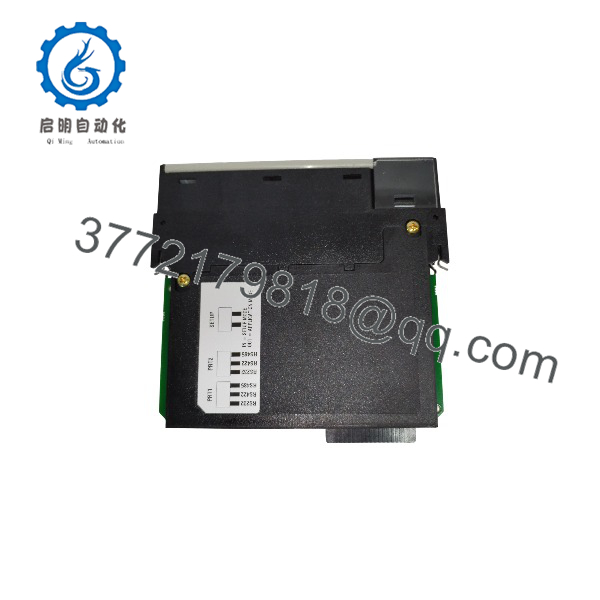
MVI56E-MCM
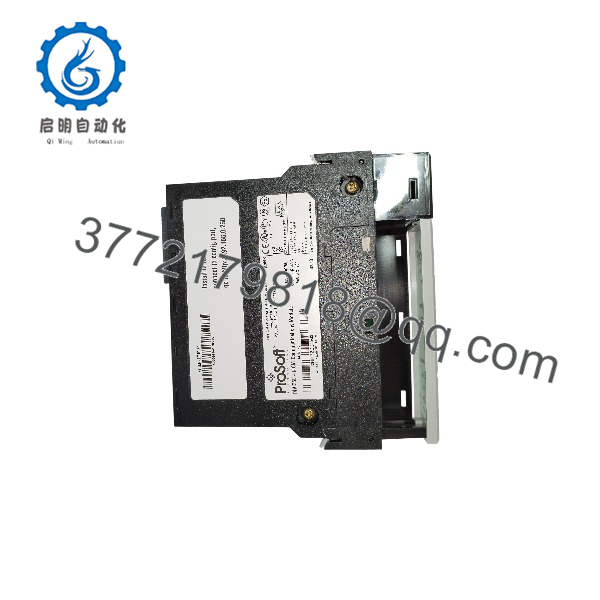
MVI56E-MCM
Installation & Configuration Guide
1.Pre-Installation (Prep & Safety):Tools needed: ESD wrist strap, Digital Multimeter.
Execute a lock-out/tag-out (LOTO) procedure on the chassis power supply. Don your grounded ESD wrist strap before handling the module. Back up your existing PLC program and take clear reference photographs of the existing module’s wiring connections and communication port assignments.
Verification: Confirm chassis power LEDs are fully extinguished and the multimeter reads 0 V DC across the backplane power terminals.
2.Removal:Hardware extraction.
Unplug the DB9 serial cables from the front of the failing module. Pull the top and bottom locking tabs outward and gently slide the module straight out of the ControlLogix chassis slot, taking care not to bend the backplane pins.
Verification: Inspect the exposed backplane pins inside the chassis slot to ensure none are bent, corroded, or damaged.
3.Installation (Clone & Seat):Hardware mounting.
Verify that the chassis slot is clear of debris. Carefully align the MVI56E-MCM module with the card guides and push it straight into the slot until the top and bottom latches snap firmly into place. Reconnect the serial cables to the corresponding DB9 ports.
Verification: Confirm that the module is fully seated flush with adjacent cards and the locking tabs are completely locked.
4.Power-On & Testing:System startup.
Restore power to the ControlLogix chassis. Monitor the front LED indicators on the module to verify proper startup sequence, backplane handshake, and successful data polling. Download or verify the application configuration via Rockwell Studio 5000 / RSLogix 5000 if required.
Verification: Confirm the green OK LED remains solid and communication Rx/Tx LEDs flash rhythmically, indicating active data exchange.
Firmware/Software Versions & Upgrade Notes
- Recommended Firmware: Version 2.02 or later ensures optimal backplane driver stability and prevents memory leak issues present in legacy revisions.
- Compatibility Notes: The MVI56E-MCM requires ControlLogix firmware version 16 or higher and integrates seamlessly with Studio 5000 Logix Designer. Upgrading from legacy MVI56-MCM modules requires updating the sample ladder logic and AOI (Add-On Instruction) files.
- Upgrade Risk Warning: Avoid updating firmware during active production cycles. Always perform offline configuration transfers via the configuration port or backplane to prevent unexpected communication drops on active Modbus loops.
Frequently Asked Questions (FAQ)
Are these modules genuinely new and unused?
This product is a Brand New Surplus unit. It has never been installed, used, or pulled from a decommissioned plant. It ships in original OEM packaging, preserving zero wear on backplane pins and pristine internal components.
Why does the price differ from standard distributor list prices?
Our pricing reflects global sourcing costs for genuine surplus inventory. While it is lower than authorized tier-one list prices, it represents a premium over risky refurbished parts, guaranteeing 100% OEM reliability and complete peace of mind.
What warranty is provided with this module?
Every unit includes a solid 1-year replacement warranty, backing up its factory-fresh condition and ensuring long-term operational dependability.
Can I hot-swap the MVI56E-MCM module in a live chassis?
While ControlLogix backplanes support Removal and Insertion Under Power (RIUP), it is strongly recommended to place the associated communication loops in manual mode or power down the chassis to prevent transient communication faults on downstream Modbus slave devices.
Do I need special software to configure the module?
The module utilizes standard ProSoft Configuration Builder (PCB) software connected via the front application port or recognized via ControlLogix backplane add-on profiles (AOP) inside Studio 5000.