 WhatsApp: +86 16626708626
 Email:
  Phone: +86 16626708626
Description
Key Technical Specifications
| Parameter | Value |
|---|---|
| Product Range | Modicon Quantum |
| Product Type | Ethernet Remote I/O Adapter |
| Model | 140CRA21110 |
| Network Type | Ethernet Remote I/O |
| Primary Function | Quantum remote drop communication |
| Communication | Ethernet-based RIO |
| Application | Quantum distributed I/O architecture |
| Installation | Quantum remote I/O rack |
| System Role | Remote communication adapter |
| Compatible Architecture | Modicon Quantum Ethernet RIO |
| Configuration | Unity Pro / EcoStruxure Control Expert environment, depending on system generation |
| Mounting | Quantum rack backplane |
The supplied product-page specification requires exact model identification and explicit compatibility notes, particularly for legacy automation equipment.
Product Introduction
The Schneider Electric 140CRA21110 is an Ethernet Remote I/O adapter used in Modicon Quantum distributed I/O architectures. It provides the communication interface between a Quantum remote I/O drop and the Ethernet RIO network, allowing the controller to exchange I/O data with modules installed at the remote rack.
For replacement work, verify the Quantum CPU, Ethernet RIO architecture, network topology, Control Expert/Unity Pro configuration, firmware revision, and remote-drop arrangement. A visually similar Quantum communication module is not automatically interchangeable.
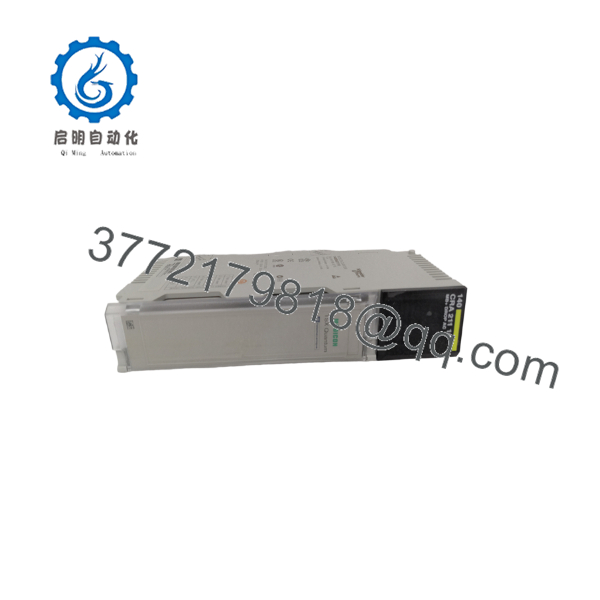
140CRA21110
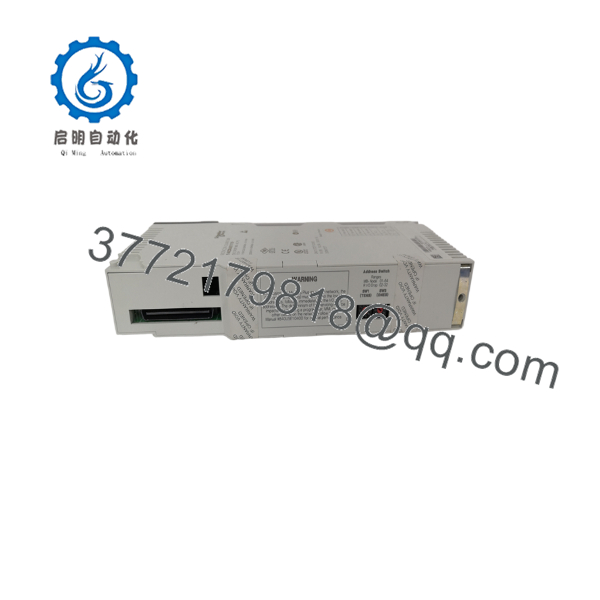
140CRA21110
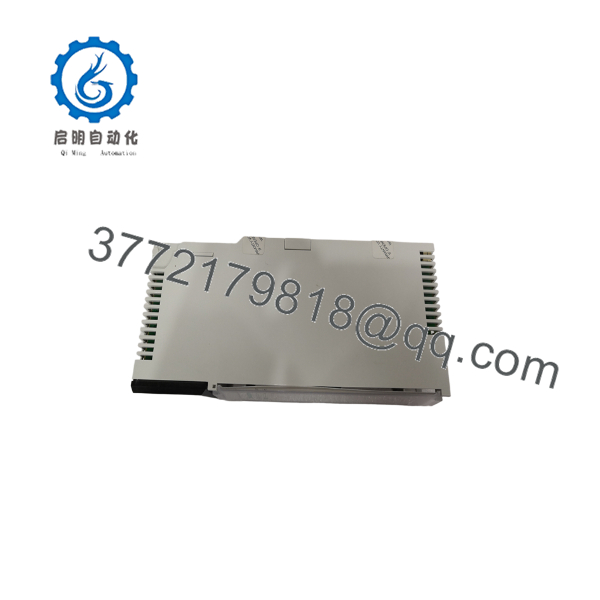
140CRA21110
Installation & Configuration Guide
Stage 1: Pre-Installation Preparation — Approximately 10 Minutes
⚠️ Safety First: Place the controlled process in its approved safe state. Follow the plant’s lockout/tagout procedure before removing the remote I/O adapter or associated rack power.
Tools Required:
- ESD wrist strap
- Appropriate screwdriver
- Digital multimeter
- Wire labels
- Smartphone or camera
- Programming workstation
- Current PLC project backup
Before removal:
- Confirm the exact part number: 140CRA21110.
- Record the remote drop number and rack position.
- Photograph the front of the adapter.
- Photograph all Ethernet connections.
- Record the Ethernet network topology.
- Document the configured remote-drop address.
- Record the adapter firmware revision if available.
- Back up the current Control Expert/Unity Pro project.
- Record the installed Quantum I/O modules.
- Document any managed-switch configuration associated with the remote drop.
Stage 2: Removing the Old Adapter — Approximately 5 Minutes
- Put the remote I/O process into its approved safe state.
- De-energize the remote rack according to the site procedure.
- Verify that the rack is electrically safe.
- Label each Ethernet cable.
- Photograph the Ethernet ports and cable routing.
- Disconnect the network cables without pulling on the connectors.
- Release the adapter’s retaining mechanism.
- Pull the 140CRA21110 straight from the Quantum backplane.
- Inspect the backplane connector.
- Keep the original adapter available until commissioning is complete.
⚠️ Do not assume that reconnecting the Ethernet cables in any open port will produce the same network behavior. Preserve the original physical topology and port assignments.
Stage 3: Installing the Replacement Adapter — Approximately 5 Minutes
- Put on a grounded ESD wrist strap.
- Verify the replacement part number: 140CRA21110.
- Compare the replacement hardware with the removed unit.
- Confirm the intended remote-drop configuration.
- Insert the adapter carefully into the Quantum backplane.
- Ensure that it is fully seated.
- Engage the retaining mechanism.
- Reconnect the Ethernet cables exactly as documented.
- Verify cable routing and connector security.
- Confirm that the remote I/O rack contains the same module arrangement as the original configuration.
Self-Checklist:
- Correct 140CRA21110 model
- Correct remote-drop number
- Correct rack position
- Ethernet connections documented
- Network topology preserved
- I/O module order verified
- Adapter fully seated
- Project backup available
Stage 4: Power-On & Network Testing — Approximately 10–20 Minutes
- Perform a final physical inspection before energizing.
- Power the remote I/O rack.
- Observe the adapter status LEDs.
- Check Ethernet link/activity indications.
- Connect to the Quantum controller using the engineering workstation.
- Confirm that the remote drop appears correctly in the project.
- Check the adapter’s communication status.
- Verify that all expected I/O modules are detected.
- Check representative input values.
- Test representative outputs under controlled conditions.
- Verify Ethernet RIO communication stability.
- Return the remote I/O system to normal operation only after communication remains stable.
⚠️ If the adapter powers up but the controller does not establish I/O communication, check the network configuration before replacing additional hardware. A failed communication path can originate from the adapter, Ethernet cabling, switch configuration, remote-drop configuration, or controller-side project settings.
Network Configuration Check
For a failed replacement, troubleshoot in this order:
- Adapter power/status
- Ethernet link
- Physical cable
- Switch port
- Network topology
- Remote-drop configuration
- Controller project configuration
- Firmware compatibility
- I/O module arrangement
This avoids replacing a functioning 140CRA21110 because of an unrelated network configuration fault.
Frequently Asked Questions (FAQ)
What is the Schneider 140CRA21110?
The 140CRA21110 is a Modicon Quantum Ethernet Remote I/O adapter used to connect a Quantum remote I/O drop to an Ethernet RIO architecture.
What does the 140CRA21110 connect to?
It connects the Quantum remote I/O rack to the plant’s Ethernet-based remote I/O network. The adapter manages communication between the remote Quantum I/O and the controller-side RIO architecture.
Can I replace a 140CRA21110 with another Quantum communication module?
Do not assume so. Quantum communication modules can have substantially different system roles. Verify the exact RIO architecture, controller, firmware, network topology, and project configuration before selecting a substitute.
Will replacing the 140CRA21110 change my PLC program?
Replacing the physical adapter does not normally erase the controller application. However, the replacement must match the configured remote-drop architecture. Back up the current Control Expert/Unity Pro project before beginning the replacement.
What should I record before removing the adapter?
Record the exact part number, hardware/firmware revision, remote-drop configuration, Ethernet connections, switch port, network topology, rack position, and installed I/O modules. Take photographs. This is especially important when maintaining legacy Quantum systems.
Why does the replacement power up but fail to communicate?
Start with the physical Ethernet path. Check link status, cable integrity, switch-port configuration, network topology, and the remote-drop configuration. Then verify the controller project and firmware compatibility.
A powered adapter with no valid I/O exchange does not automatically indicate a defective replacement module.
Is the 140CRA21110 still a current product?
Treat it as a legacy Quantum component when planning procurement. Before purchasing, verify current OEM lifecycle information and whether the offered unit is factory sealed, new surplus, or refurbished. For a critical spare, request photographs of the actual module and its identification label.
What condition should I specify when ordering?
Specify one of these conditions clearly:
- Factory Sealed
- New Original / New Surplus
- Refurbished (tested)
For refurbished equipment, request the functional test scope and report. The supplied product-page framework specifically calls for transparent condition disclosure and documented testing rather than vague descriptions.