 WhatsApp: +86 16626708626
 Email:
  Phone: +86 16626708626
Description
Key Technical Specifications
| Parameter | Value |
|---|---|
| Manufacturer | Yokogawa |
| Full Model | AIP830-111 |
| Base Model | AIP830 |
| Product Type | Operation keyboard for single-loop operation |
| Intended System | Yokogawa CENTUM VP Human Interface Station, HIS |
| Primary Function | Dedicated operator access for one control loop at a time |
| Connection Type | USB connection to HIS/PC |
| PC Interface | Two USB Type-A connectors |
| USB Keyboard Interface | USB 2.0, full-speed, bus-powered |
| Sound Interface | Independent USB speaker, USB 1.1 full-speed, bus-powered |
| Input Voltage | 5 V DC ±5%, supplied from the PC USB port |
| Maximum Current Consumption | 1 A |
| Mode Selection Switch | Included |
| Operation Confirmation Key | Type B |
| Sound Function | Independent USB speaker plus buzzer alarm function |
| Keyboard Use Limit | One AIP830 operation keyboard per HIS |
| Operating Temperature | 5 to +40 °C |
| Storage / Transport Temperature | −20 to +60 °C |
| Operating Humidity | 20–80% RH, non-condensing |
| Approximate Weight | 2.0 kg |
| Chassis Color | Black |
| Installation Category | IEC 61010-1, Installation Category I |
| Lifecycle Note | Verify HIS compatibility, USB port availability, exact suffix, keyboard layout, and required documentation language before ordering |
Yokogawa identifies the AIP830 as an operation keyboard for single-loop operation in a CENTUM VP Desktop HIS environment. The -111 suffix specifies a model with a mode selection switch and a Type B operation-confirmation key; the keyboard uses USB power and includes an independent USB speaker for sound functions in addition to the internal buzzer.
Product Introduction
The Yokogawa AIP830-111 is a dedicated USB operation keyboard for single-loop control from a CENTUM VP Human Interface Station. It gives operators physical controls for loop selection, mode selection, setpoint and output adjustments, and confirmed command execution, reducing dependence on mouse-only operation during normal process control, startup, and abnormal situations.
This is an operator-station peripheral, not a controller or I/O module. It connects to a compatible HIS through USB and is intended for one keyboard per HIS. Confirm the target HIS type, workstation operating-system support, installed CENTUM VP release, USB connectivity, and exact key-function requirements before ordering a replacement.
Troubleshooting Quick Reference
| Symptom | Possible Cause | Relevance to this Part | Quick Check Method | Recommendation |
|---|---|---|---|---|
| Keyboard is completely unresponsive | USB cable disconnected, failed USB port, insufficient USB power, unsupported HIS configuration, internal keyboard fault | ⚠️ Medium | Verify both USB plugs are fully inserted; test the keyboard on the approved HIS USB ports; check whether other USB devices enumerate correctly | Confirm the HIS USB ports and cable condition before replacing the AIP830-111 |
| Keyboard powers up but no loop commands work | HIS application not recognizing the keyboard, incorrect operator-station configuration, incompatible software release | ⚠️ Medium | Check the HIS device status and CENTUM VP configuration; test with a known-good keyboard if available | Verify workstation configuration and software compatibility before condemning the keyboard |
| Mode selection switch does not change controller mode | Loop not selected, authority restriction, controller interlock, failed switch, application permission issue | ⚠️ Medium | Confirm the target loop is selected; verify operator permissions and controller interlocks; observe the mode request in the HIS display | Do not bypass control permissions. If mode requests do not appear with correct HIS setup, test the keyboard switch function |
| Confirmation key does not execute a command | Command requires a different sequence, target loop is not selected, confirmation key fault, operation restriction active | ⚠️ Medium | Test a noncritical command under an approved procedure; verify that the screen prompts for Type B confirmation | Confirm the operating sequence first. Avoid repeated command attempts on active control loops |
| Setpoint adjustment keys work intermittently | Worn key contacts, contamination, USB cable strain, workstation USB issue | ⚠️ Medium | Test each key repeatedly in a controlled training or maintenance screen; inspect cable strain relief and connector condition | Replace the keyboard if the same keys fail consistently on a known-good HIS USB port |
| USB speaker has no sound | Speaker USB connection missing, HIS volume muted, wrong audio device selected, speaker hardware fault | ❌ Low | Confirm the independent speaker USB connection; check HIS audio settings and test the speaker on an approved workstation | Check workstation audio configuration before replacing the -111 |
| Buzzer works but USB audio does not | USB speaker configuration issue, audio device disabled, speaker connection fault | ❌ Low | Verify the HIS recognizes the USB audio device; test with system-approved audio settings | The buzzer and USB speaker are separate functions. Troubleshoot the speaker path independently |
| Keyboard causes repeated or unwanted commands | Stuck key, liquid contamination, damaged membrane, electrical noise, software focus issue | ✅ High | Remove the keyboard from service under approved procedure; inspect for stuck keys; test in a safe nonproduction environment | Replace the unit if a key repeats or sends unintended commands. Do not leave it connected to an active HIS |
| Replacement keyboard is detected but key labels do not match expected action | Wrong suffix, different confirmation-key type, keyboard-layout mismatch, wrong HIS version | ✅ High | Compare the old and new full model number, suffix, front-panel layout, mode switch, and confirmation-key type | Match the complete -111 designation. Similar models can have different operator-control arrangements |
| HIS shows USB fault after connecting replacement | Damaged cable, excessive USB current, faulty keyboard electronics, unsuitable USB hub | ⚠️ Medium | Connect directly to the approved HIS USB port; inspect cable and test with a known-good keyboard | Do not use an unapproved hub. Replace the unit if it causes the same USB fault on a verified HIS port |
| Keyboard fails only after long shifts | Cable fatigue, heat exposure, intermittent internal connection, workstation power-management issue | ⚠️ Medium | Check cable continuity while flexing near strain relief; review HIS USB power-management settings and ambient temperature | Correct cabling and workstation settings first. Replace after reproducing the fault under controlled conditions |
| Operator cannot execute commands after keyboard swap | User login lacks authority, workstation role changed, control lock active, system security setting | ❌ Low | Verify operator account privileges, station role, active control authority, and loop ownership | This is commonly a system-permission issue, not a hardware failure |
| Unit has no display or touchscreen response | Incorrect expectation | ❌ Low | Review the keyboard’s intended function and the HIS screen status | The -111 is a physical operation keyboard. It does not contain an independent process display or touchscreen |
❗ Control-command warning: Treat this keyboard as an active control interface. A stuck key, repeated key, or wrong keyboard layout can send unintended setpoint, mode, or output commands. Do not test command keys on a live critical loop without an approved procedure.
❗ USB warning: The keyboard receives 5 V DC power from the HIS USB port and can draw up to 1 A. Connect it directly to a designated, approved USB port. Do not assume an unpowered hub or a front-panel extension will provide stable power.
❗ Model-suffix warning: is not a generic PC keyboard. The suffix identifies the mode-selection-switch and Type B confirmation-key arrangement. Match the exact full model and front-panel layout before ordering.
❗ One-per-HIS warning: Yokogawa specifies one keyboard per HIS. Connecting more than one unit to a workstation can create device-recognition or operating ambiguity.
If troubleshooting remains unresolved, provide technical support with photos of the label, front keyboard layout, USB connectors, cable condition, HIS model, CENTUM VP version, device-manager status, user login role, and exact command or key function that fails.
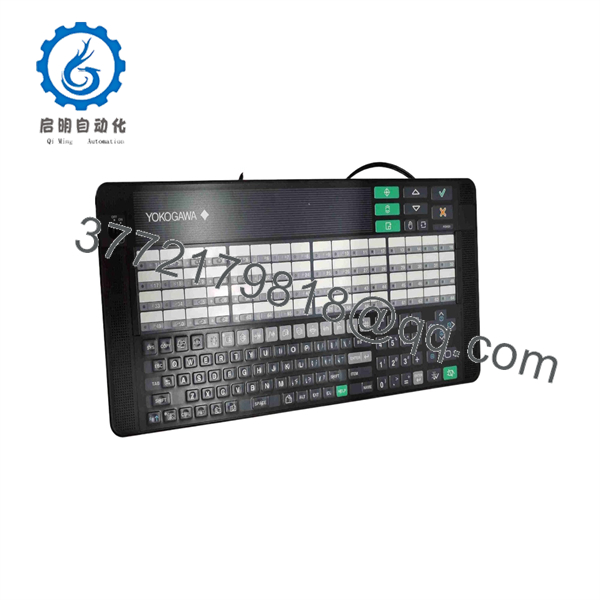
AIP830-111
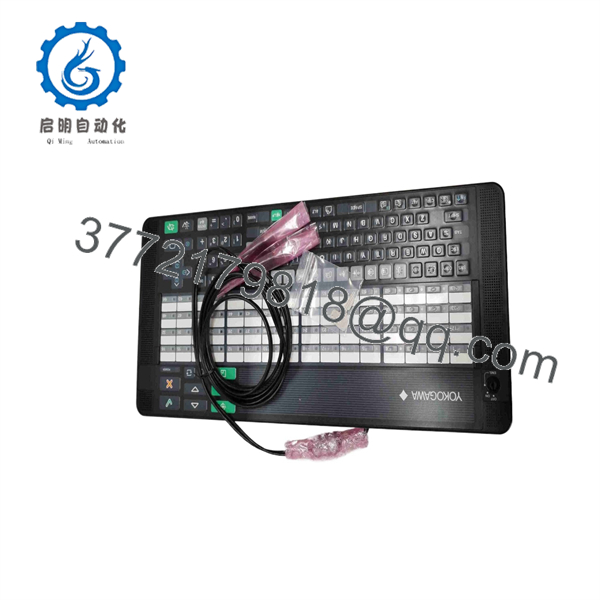
AIP830-111
Frequently Asked Questions
What does the Yok do?
provides physical operator controls for one selected process-control loop on a Yokogawa CENTUM VP Human Interface Station. It supports direct loop operation, including mode selection and confirmed control actions, rather than requiring all operator interaction through a standard mouse and keyboard.
I a PLC module or DCS controller?
No. It is a USB operator-station keyboard. It does not execute process logic, read field signals, drive outputs, or replace a Field Control Unit. Its function is to provide an operator with dedicated controls for a CENTUM VP HIS workstation.
What does the -111 suffix mean?
The suffix identifies this control arrangement:
- First
1: Mode selection switch included - Second
1: Type B operation-confirmation key - Third
1: Base configuration reference used by Yokogawa for this version
When replacing the keyboard, match the full suffix and physical control layout rather than ordering only “.”
How doe connect to the HIS?
It connects through USB. The keyboard interface uses USB 2.0 full-speed, while the independent sound function uses USB 1.1 full-speed. Both are bus-powered from the HIS USB port, using 5 V DC ±5%.
Doe include an alarm sound function?
Yes. The includes an internal buzzer and an independent USB speaker for sound functions. If alarms are visible but no audio is heard, check the speaker USB connection and HIS audio-device configuration separately from the keyboard input function.
Can I connect more than one keyboard to a single operator station?
No. Yokogawa specifies one operation keyboard per HIS. Use one correctly configured keyboard per workstation to avoid USB recognition conflicts and operator-control ambiguity.
Can I hot-swa?
USB hardware can generally be physically connected and disconnected, but do not swap the unit casually during active control-room operation. Confirm no command key is held, ensure the operator station remains supervised, avoid testing controls on live critical loops, and follow the site procedure for HIS peripheral maintenance.
Will a standard USB keyboard replac?
A standard keyboard can provide normal PC text entry, but it does not replac’s dedicated mode-selection switch, loop-operation controls, Type B confirmation key, operational labeling, and integrated alarm-sound function. If the operating philosophy depends on the , use the exact replacement model.
Why is a new-su less expensive than a current OEM unit?
New-surplus stock can come from a canceled project, system upgrade, control-room spare inventory, or distributor overstock. It may cost less because it is outside the current OEM supply channel. Confirm full model number, keyboard layout, USB cable condition, packaging, actual photos, tested functionality, warranty, return terms, and lead time before purchase.
What condition should I request for a critical control-room spare?
Request New Original / New Surplus with photos of the full label, keyboard face, USB connectors, cable, and original packaging. For Refurbished (tested) stock, request documented testing of every key, mode switch, Type B confirmation key, USB keyboard enumeration, USB speaker function, buzzer operation, cable strain relief, and several hours of continuous operation on a compatible HIS or approved test workstation.