 WhatsApp: +86 16626708626
 Email:
  Phone: +86 16626708626
Description
Key Technical Specifications
| Parameter | Value |
|---|---|
| Product Type | DeviceNet RS-232 Interface Module |
| Communication Interface | RS-232 (9-pin D-Sub) |
| Network Interface | DeviceNet 5-pin Connector |
| Host Device | PC or Engineering Workstation |
| DeviceNet Baud Rates | 125 kbps, 250 kbps, 500 kbps |
| RS-232 Baud Rates | 1200–57,600 bps |
| Power Source | DeviceNet Network or External 9 VDC Adapter |
| Status Indicators | Module, RS-232, Network LEDs |
| Mounting | DIN Rail |
| Operating Mode | Point-to-Point or DeviceNet Network Access |
| Lifecycle Status | Discontinued |
| Recommended Replacement | 1784-U2DN USB-to-DeviceNet Interface |
The 1770-KFD is a portable RS-232 to DeviceNet interface module that enables a computer to communicate with DeviceNet networks for configuration, commissioning, diagnostics, and maintenance. Rockwell Automation discontinued the product on January 8, 2019, and recommends the 1784-U2DN as its engineering replacement.
Product Introduction
The Allen-Bradley 1770-KFD provides a communication bridge between an RS-232-equipped computer and a DeviceNet network. It allows engineers to configure DeviceNet devices, assign node addresses, monitor network activity, download parameters, and perform diagnostics without requiring a DeviceNet scanner.
The module supports both point-to-point communication with an individual DeviceNet device and direct access to an entire DeviceNet network. It is commonly used during system commissioning, troubleshooting, preventive maintenance, and field service operations.
The 1770-KFD includes a standard 9-pin RS-232 serial connector, a 5-pin DeviceNet connector, diagnostic LED indicators, and DIN-rail mounting capability. Depending on the installation, it can be powered either directly from the DeviceNet network or from an external 9 VDC power adapter.
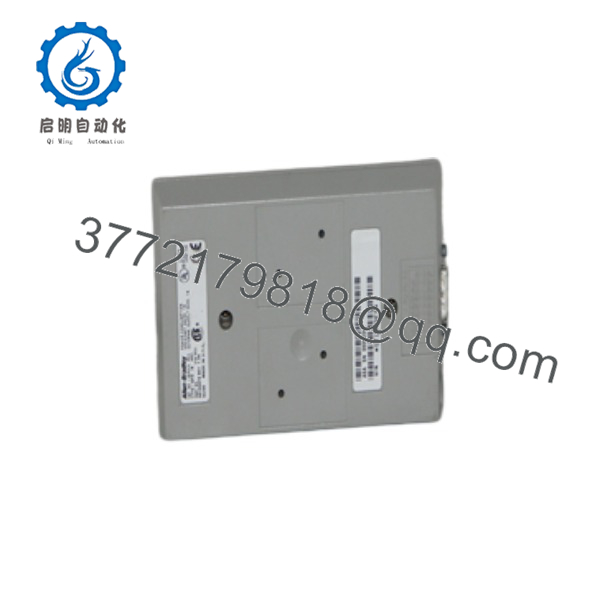
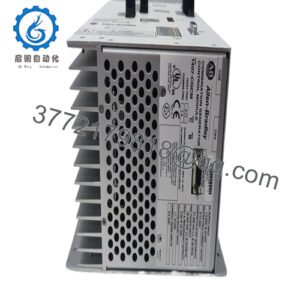
1770-KFD
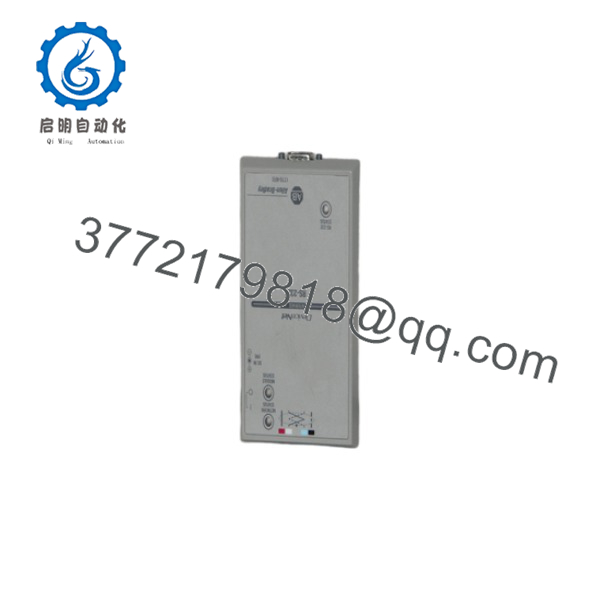
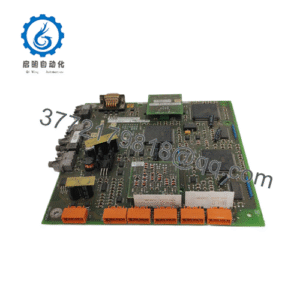
1770-KFD
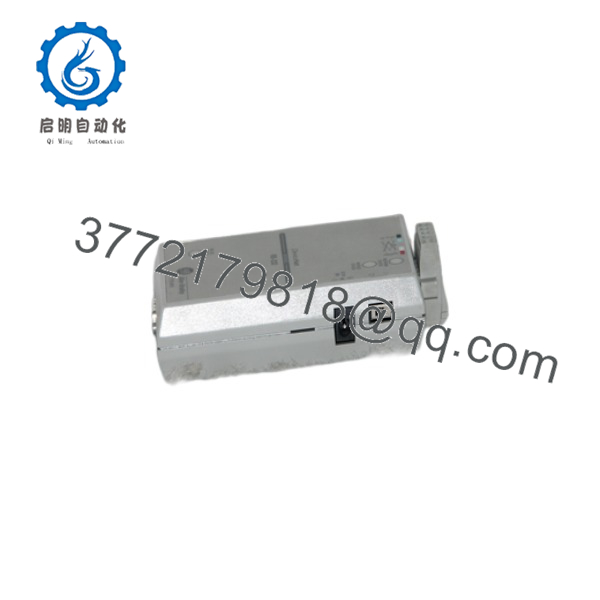
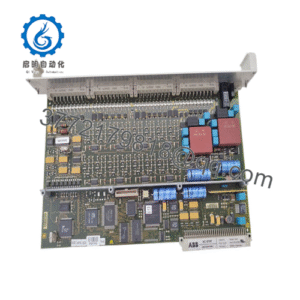
1770-KFD
Installation & Configuration Guide
Stage 1 – Pre-Installation Preparation (5–10 Minutes)
⚠️ Safety First
- Notify operations personnel before maintenance.
- Verify the DeviceNet network status.
- Disconnect equipment if required by plant procedures.
- Confirm the engineering workstation has the required DeviceNet software installed.
Required Tools
- Laptop or PC with RS-232 port (or USB-to-Serial adapter)
- DeviceNet configuration software
- RS-232 null-modem cable
- DeviceNet connection cable
- Digital multimeter
Before Installation
- Record DeviceNet baud rate.
- Record network node addresses.
- Verify the network termination resistors.
- Confirm available network power.
Stage 2 – Hardware Installation
- Mount the 1770-KFD on a DIN rail.
- Connect the RS-232 cable to the engineering computer.
- Connect the DeviceNet cable to the module.
- Apply power through the DeviceNet network or external 9 VDC adapter.
- Verify the Module, RS-232, and Network LEDs indicate normal operation.
⚠️ Avoid connecting or disconnecting DeviceNet wiring while the network is energized unless permitted by plant procedures.
Stage 3 – Communication Configuration
- Install the appropriate 1770-KFD driver.
- Configure the RS-232 COM port.
- Select the DeviceNet baud rate (125, 250, or 500 kbps).
- Verify communication with the DeviceNet network.
- Launch the DeviceNet configuration software.
Configuration Checklist
- ✔ Correct COM port selected
- ✔ Matching DeviceNet baud rate
- ✔ Network communication established
- ✔ Module LEDs indicate normal status
- ✔ Device discovery completed
Stage 4 – Functional Verification
- Scan the DeviceNet network.
- Verify all nodes are detected.
- Read parameters from selected devices.
- Modify configuration if required.
- Save the network configuration.
- Disconnect only after confirming communication has completed successfully.
⚠️ Troubleshooting
- No communication: verify RS-232 cable and COM port settings.
- Network offline: check DeviceNet power and termination.
- Devices not detected: confirm baud rate and node addresses.
- LED fault indication: inspect wiring and network voltage.
Frequently Asked Questions
Q1. What is the primary purpose of the 1770-KFD?
The 1770-KFD connects an engineering computer to a DeviceNet network through an RS-232 interface, allowing device configuration, diagnostics, commissioning, and maintenance.
Q2. Is the 1770-KFD still manufactured?
No. Rockwell Automation officially discontinued the 1770-KFD on January 8, 2019. The recommended engineering replacement is the 1784-U2DN USB-to-DeviceNet interface.
Q3. Can the module communicate with an entire DeviceNet network?
Yes. The module supports both point-to-point communication with a single device and communication across a complete DeviceNet network for configuration and diagnostics.
Q4. How is the module powered?
The 1770-KFD can be powered either directly from the DeviceNet network or by an external 9 VDC power adapter, depending on the installation method.
Q5. What communication speeds are supported?
The interface supports RS-232 baud rates from 1,200 to 57,600 bps and DeviceNet network speeds of 125 kbps, 250 kbps, and 500 kbps.
Q6. What should I verify before ordering?
Confirm the following:
- Catalog number (1770-KFD)
- RS-232 interface availability on the engineering workstation
- Required DeviceNet communication speed
- Power source (DeviceNet network or external 9 VDC)
- DIN rail mounting requirements
- DeviceNet software compatibility
- Whether a legacy RS-232 interface or the newer 1784-U2DN replacement better fits the application
A common commissioning issue is configuring the RS-232 COM port or DeviceNet baud rate incorrectly. Before connecting to the network, verify that the PC communication settings match the DeviceNet network speed to ensure reliable device discovery and diagnostics.