 WhatsApp: +86 16626708626
 Email:
  Phone: +86 16626708626
Description
3. Key Technical Specifications
| Parameter | Value |
|---|---|
| Display Type | Color active-matrix TFT LCD |
| Display Size | 10.4 inches |
| Display Area | Approx. 211 × 158 mm (8.3 × 6.2 in) |
| Resolution | 640 × 480, 18-bit color graphics |
| Operator Input | Keypad + Analog resistive touch |
| Function Keys | F1–F16 and K1–K16 (numeric, navigation, special keys) |
| Internal Memory | 512 MB RAM / 512 MB nonvolatile flash |
| Communication Ports | Ethernet (10/100), RS-232, 2 USB host ports |
| Input Voltage | 18–32 V DC (24 V DC nominal) |
| Power Consumption | Approx. 70 W max / 39 W typical |
| Operating System | Windows CE 6.0 (standard, no extended features) |
| Configuration Software | FactoryTalk View Machine Edition (v6.0 or later) |
| Backlight | LED, long-life (typically 50,000–100,000 hr class) |
| Series | A and B |
4. Product Introduction
The Allen-Bradley 2711P-B10C4D8 is a PanelView Plus 6 1000 operator terminal. It features a 10.4-inch color active-matrix TFT display with 640 × 480 resolution and dual operator input via stainless-steel membrane keypad (F1–F16 / K1–K16) plus analog resistive touchscreen.
The terminal includes standard communication ports for Ethernet and RS-232, plus two USB host ports. It is powered by 18–32 V DC and runs Windows CE 6.0 with 512 MB of RAM and 512 MB of nonvolatile flash memory. Applications are developed and run with FactoryTalk View Machine Edition software. Optional communication modules (DH+, DH-485, ControlNet) can be added via the network interface. This model is discontinued (end-of-life).
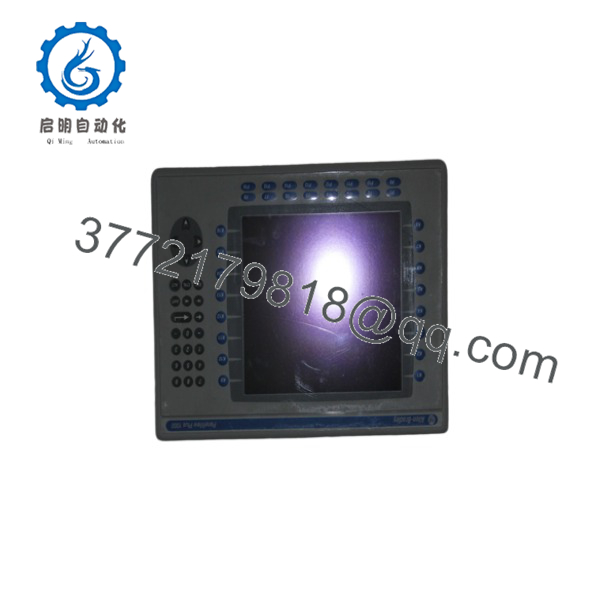
2711P-B10C4D8
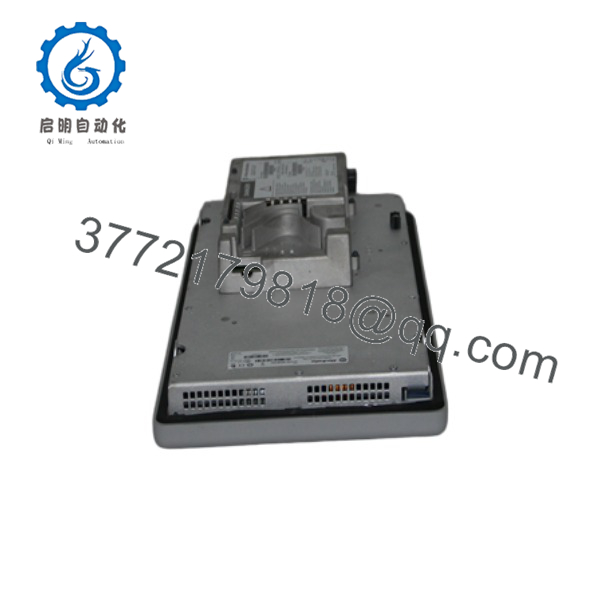
2711P-B10C4D8
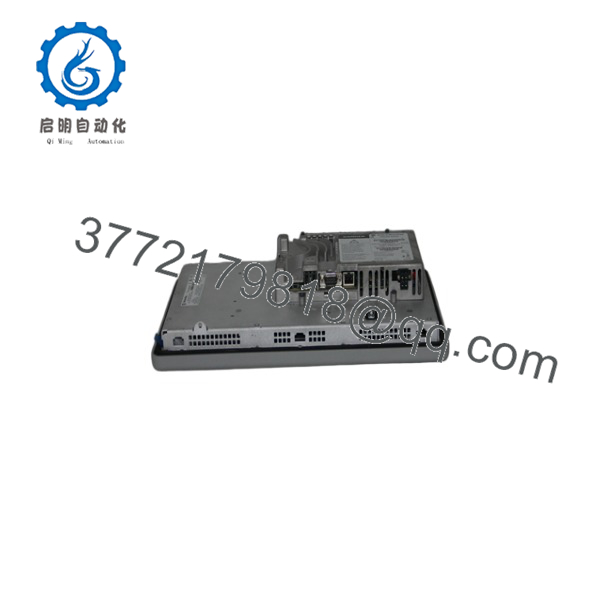
2711P-B10C4D8
5. Installation & Configuration Guide
Stage 1: Pre-Installation Preparation (10–15 min) ⚠️ Safety First: Disconnect all power sources. Verify the panel cutout matches the required dimensions (approximately 224 × 375 mm). Wear an ESD wrist strap. Tools Required: ESD strap, screwdriver, multimeter, Ethernet cable, RS-232 cable if needed, USB devices as required. Data Backup: Back up the existing application (.mer file) via USB, SD card, or Ethernet if the old terminal is still functional. Record IP settings, node addresses, and communication parameters.
Stage 2: Removing the Old Terminal (8–12 min)
- Confirm power is removed.
- Disconnect Ethernet, RS-232, USB, and any optional communication module cables. Label all connections.
- Disconnect DC power wiring.
- Release the mounting clips or hardware and remove the terminal from the panel. ⚠️ Retain the old terminal until the replacement is fully tested and the application is verified.
Stage 3: Installing the New Terminal (10–15 min)
- Verify the unit is marked 2711P-B10C4D8 and note the series letter.
- Insert the terminal into the panel cutout from the front and secure with the mounting hardware or clips.
- Connect 18–32 V DC power (observe polarity and grounding).
- Connect Ethernet, RS-232, and any USB devices or optional communication modules.
- Ensure the front gasket is properly seated. Self-Checklist: [ ] Correct cutout size [ ] Mounting secure [ ] Power polarity correct [ ] Network and serial cables seated.
Stage 4: Power-On & Testing (15–30 min)
- Apply DC power. The terminal should boot into Windows CE and display the FactoryTalk View runtime.
- Transfer or download the application (.mer file) via USB, SD card, or Ethernet.
- Configure network settings (IP address, subnet, gateway) as required.
- Verify keypad and touchscreen response, Ethernet/RS-232 communication with the controller, and all application screens.
- Place the system in normal operation and monitor for faults. ⚠️ Troubleshooting Note: A blank or frozen display often indicates power issues or a corrupted application. Communication failures are usually caused by incorrect IP settings, firewall blocks, or mismatched communication drivers.
6. Frequently Asked Questions (FAQ)
Q: Can the 2711P-B10C4D8 be hot-swapped? No. Always remove DC power before installing or removing the terminal. Power must be off during all wiring changes.
Q: Is the 2711P-B10C4D8 still in production? No. The PanelView Plus 6 series has reached end-of-life. Remaining units are new surplus or refurbished. For new designs, migrate to PanelView Plus 7 or PanelView 5000 series terminals.
Q: What software is required? FactoryTalk View Machine Edition (version 6.0 or later) is used to develop and download applications. The terminal runs the Machine Edition runtime under Windows CE 6.0.
Q: What does the catalog number breakdown mean? B = Keypad + Touch, 10 = 10.4-inch display, C = Color, 4 = Ethernet + RS-232 + USB, D = DC power, 8 = Windows CE 6.0 (standard, no extended features).
Q: Why is the price lower than historical OEM list price? These are genuine surplus units from excess inventory. They are original Allen-Bradley terminals that have never been installed in a running system, but they are no longer available through standard Rockwell channels. Functional testing and warranty are provided.
Q: Can optional communication modules be added? Yes. The network interface supports optional modules for DH+, DH-485, or ControlNet. These are ordered separately.
Q: Is the backlight field-replaceable? On most PanelView Plus 6 units the backlight is long-life LED or CCFL and may or may not be field-replaceable depending on the exact series and display module. Confirm with the specific unit documentation.