 WhatsApp: +86 16626708626
 Email:
  Phone: +86 16626708626
Description
Key Technical Specifications
| Parameter | Value |
|---|---|
| Manufacturer | Foxboro (Schneider Electric) |
| Model | P0924WV |
| Product Type | USB Annunciator/Numeric Keyboard |
| System Compatibility | Foxboro Evo and I/A Series Workstations |
| Interface | USB 2.0 |
| Annunciator Keys | 32 programmable keys (4 × 8 layout) |
| Macro Keys | 12 dedicated programmable keys |
| LED Indicators | Red, Yellow, Green, or Off (configurable per key) |
| Navigation | Four arrow keys with Select key |
| Alarm Functions | Silence Horn and Lamp Test buttons |
| Alarm Relay | Two-pole relay with self-check capability |
| Mounting | Desktop or panel mounted |
| Condition | New Original / New Surplus |
| Warranty | 12 Months |
Engineering Note: The P0924WV is a dedicated USB Annunciator/Numeric Keyboard, not a DCS controller or power supply. It provides fixed-function operator controls for alarm acknowledgement, navigation, and numeric entry on Foxboro Evo and I/A Series operator workstations.
Product Introduction
The Foxboro P0924WV is a USB-connected annunciator and numeric keyboard designed for Foxboro Evo and legacy I/A Series operator stations. It combines programmable annunciator keys, macro keys, navigation controls, and numeric input in a dedicated industrial HMI device for continuous process operations.
Unlike a standard PC keyboard, the P0924WV provides configurable LED annunciation, integrated audible alarm functions, and dedicated Silence Horn and Lamp Test buttons. These features allow operators to acknowledge alarms and execute predefined workstation functions without navigating multiple software screens, improving response time in process control environments.
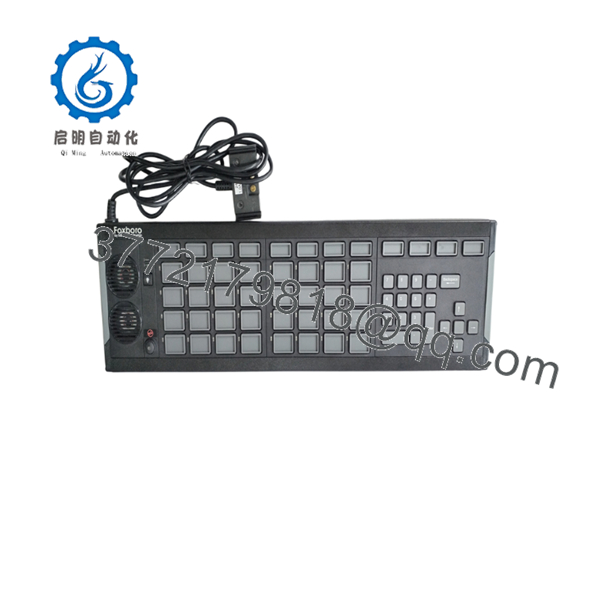
P0924WV
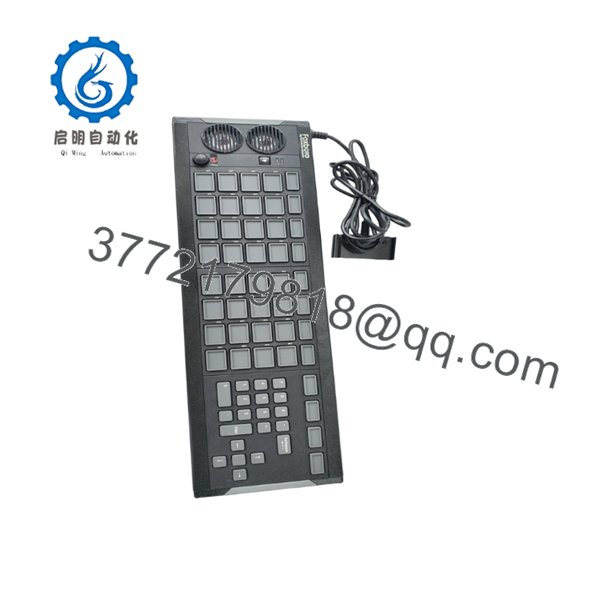
P0924WV
Installation & Configuration Guide
Stage 1 – Pre-Installation Preparation (5 Minutes)
⚠️ Safety First
- Notify operators before disconnecting the workstation.
- Shut down the operator station if required by plant procedures.
- Disconnect USB power before replacing the keyboard.
Required Tools
- ESD wrist strap
- USB cable (if replacement is required)
- Soft cloth for cleaning
- Engineering workstation access
Stage 2 – Remove the Existing Keyboard (5 Minutes)
- Disconnect the USB cable.
- Remove any mounting hardware if panel-mounted.
- Inspect the USB connector for bent pins or damage.
- Clean the mounting surface before installing the replacement.
⚠️ Do not pull the cable by force. Disconnect using the connector body.
Stage 3 – Install the P0924WV (10 Minutes)
- Verify the model number is P0924WV.
- Position the keyboard on the desk or mounting panel.
- Connect the USB cable to the workstation or approved USB hub.
- Secure the cable to prevent accidental disconnection.
- Launch the Foxboro keyboard configuration utility if customization is required.
Installation Checklist
- ☑ Correct model verified
- ☑ USB connection secure
- ☑ Keyboard detected by workstation
- ☑ Alarm relay configured (if used)
- ☑ Macro keys tested
Stage 4 – Functional Testing (10 Minutes)
- Verify the operating system recognizes the keyboard.
- Test the numeric keypad.
- Confirm all annunciator LEDs illuminate during the Lamp Test.
- Press the Silence Horn button and verify the configured response.
- Test several programmable annunciator keys and macro functions.
- Confirm alarm relay operation if connected.
⚠️ If LEDs fail to illuminate, verify the workstation configuration before replacing the keyboard. Configuration issues are more common than hardware failures.
Frequently Asked Questions (FAQ)
Q1. What is the Foxboro used for?
The is a dedicated USB annunciator and numeric keyboard used with Foxboro Evo and I/A Series operator workstations. It provides programmable alarm keys, macro keys, and numeric data entry for industrial HMI applications.
Q2. Can it replace a standard USB keyboard?
No. Although it connects through USB, the is an application-specific operator interface. It complements, rather than replaces, a standard PC keyboard in most control room installations.
Q3. Which operating systems are supported?
Current Schneider Electric documentation lists support for Windows 10 LTSC, Windows Server 2016, Windows Server 2022, and related Foxboro workstation environments. Earlier revisions also supported Windows 7 and Windows Server 2008 R2. Compatibility depends on the Foxboro software version installed.
Q4. Can the annunciator LEDs be customized?
Yes. Each annunciator key can be configured to display different LED states, including red, yellow, green, or off, according to system alarms and workstation configuration.
Q5. Does the keyboard include alarm hardware?
Yes. The includes a two-pole alarm relay that can activate an external alarm device while providing internal relay self-monitoring.
Q6. What should I verify before ordering?
Confirm the following:
- Complete model number ()
- Foxboro Evo or I/A Series workstation compatibility
- Required keyboard layout
- USB interface requirements
- Mounting method (desktop or panel)
- Required operator software version
Verifying these details before procurement helps ensure compatibility with your existing Foxboro operator station and minimizes commissioning time.