 WhatsApp: +86 16626708626
 Email:
  Phone: +86 16626708626
Description
Key Technical Specifications
| Parameter | Value |
|---|---|
| Manufacturer | Pro-face |
| Series | GP4000 / GP-4500 |
| Product Name | GP-4501T |
| Model | PFXGP4501TAD |
| Touch Type | Analog resistive |
| Display Size | 10.4 inches |
| Display Type | TFT color LCD |
| Resolution | VGA, 640 × 480 pixels |
| Display Colors | 65,536 colors |
| Ethernet | 10BASE-T / 100BASE-TX |
| COM1 | RS-232C |
| COM2 | RS-422/485 |
| USB Type A | USB 2.0 × 1 |
| USB Mini-B | USB 2.0 × 1 |
| SD Card | SD card interface |
| Programming Environment | GP-Pro EX |
| Product Family | GP-4500 Series |
Pro-face lists PFXGP4501TAD under GP-4501T with the analog touch panel configuration, alongside Ethernet, USB, SD card, and dual-serial communication functions.
The GP4000 hardware manual documents the interface architecture for this family, including Ethernet at 10BASE-T/100BASE-TX, USB 2.0 Type A and mini-B, RS-232C COM1, and RS-422/485 COM2.
Product Introduction
The Pro-face PFXGP4501TAD is a 10.4-inch GP-4501T industrial HMI in the GP4000 Series. It uses a VGA 640 × 480 TFT color display with an analog resistive touch panel and provides Ethernet, dual serial communication, USB, and SD-card interfaces for machine-control applications.
For legacy equipment, the important point is the exact suffix. PFXGP4501TAD is the analog-touch-panel version, while PFXGP4501TMD and PFXGP4501TMA belong to the matrix-touch-panel variants. Do not substitute them solely because the front-panel appearance is similar.
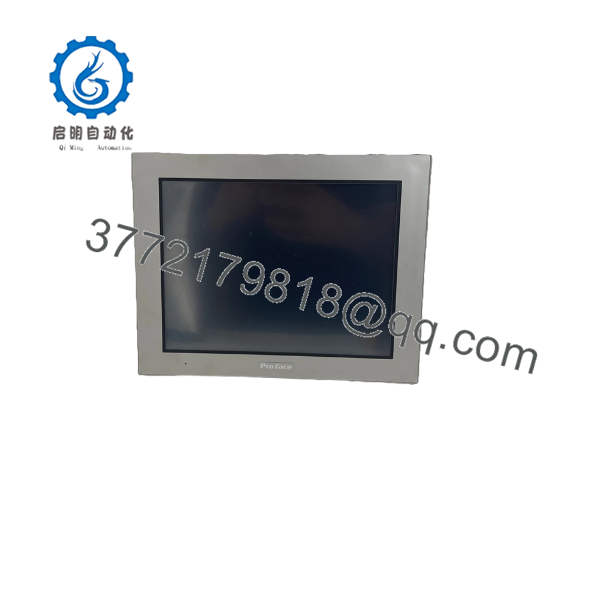
PFXGP4501TAD
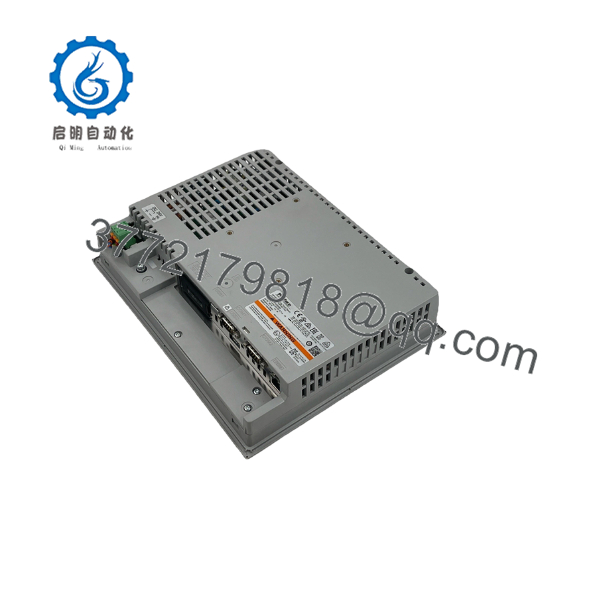
PFXGP4501TAD
Installation & Configuration Guide
Stage 1: Pre-Installation Preparation — 5–10 Minutes
⚠️ Safety First: Put the machine in a safe state and isolate the HMI/control-cabinet power before removing the existing GP-4501T.
Tools Required
- ESD wrist strap
- Phillips screwdriver
- Multimeter
- Cable labels
- Smartphone or camera
- Panel-mounting tools
Before Removal
- Notify operations of the maintenance window.
- Place the controlled equipment in a safe state.
- Isolate power to the HMI.
- Verify the supply is de-energized.
- Photograph the existing HMI and rear connections.
- Record the complete model number and revision.
- Photograph COM1, COM2, Ethernet, USB, and SD-card arrangements.
- Back up the GP-Pro EX project before changing hardware whenever possible.
Stage 2: Removing the Existing HMI — Approximately 10 Minutes
- Remove the rear access hardware as required.
- Label every connected cable.
- Disconnect COM1 and COM2.
- Disconnect Ethernet.
- Disconnect USB and other peripheral connections.
- Remove the power connection.
- Release the panel mounting hardware.
- Support the HMI while removing the final fasteners.
- Remove the unit from the panel.
- Inspect the panel opening and gasket area.
⚠️ Do not pull directly on communication cables. Older cabinet wiring can place mechanical stress on the connector and PCB.
Stage 3: Installing PFXGP4501TAD — Approximately 10 Minutes
- Verify the exact replacement: PFXGP4501TAD.
- Confirm that the existing application expects an analog resistive touch panel.
- Inspect the LCD, touchscreen, bezel, connectors, and mounting hardware.
- Confirm the panel opening before installation.
- Position the HMI in the panel.
- Install the mounting hardware evenly.
- Reconnect the power supply.
- Reconnect COM1 and COM2 according to the original wiring.
- Reconnect Ethernet.
- Reconnect USB and peripheral equipment as required.
- Verify that all connectors are fully seated.
⚠️ Do not confuse with PFXGP4501TMD. Pro-face identifies the former as the analog-touch-panel version and the latter as a matrix-touch-panel model.
Stage 4: Power-On & Commissioning — 5–15 Minutes
- Perform a final wiring inspection.
- Verify the supply voltage.
- Restore power.
- Allow the HMI to complete its startup sequence.
- Confirm the LCD operates normally.
- Test touch response at multiple points.
- Connect to the GP-Pro EX environment if configuration changes are required.
- Verify Ethernet communication.
- Verify COM1 and COM2 communication.
- Confirm PLC/device data.
- Test alarm and status screens.
- Test representative operator commands.
Pro-face’s software documentation lists as a supported GP4000 model for GP-Pro EX and Pro-Server EX.
Replacement Check
- verified
- Analog touch type confirmed
- Panel cutout verified
- Power wiring checked
- wiring checked
- wiring checked
- Ethernet verified
- USB connections verified
- Display tested
- Touchscreen tested
- GP-Pro EX project verified
- PLC communication verified
Frequently Asked Questions (FAQ)
Q1. What is Pro-face ?
It is the global model number for the GP-4501T 10.4-inch industrial HMI with an analog resistive touch panel. It belongs to the GP4000 / GP-4500 Series.
Q2. What display resolution does use?
The GP-4501T uses a VGA 640 × 480-pixel TFT color LCD with 65,536 colors.
Q3. Does have Ethernet?
Yes. The GP4000 hardware documentation specifies 10BASE-T/100BASE-TX Ethernet. The unit also provides USB and serial interfaces.
Q4. What is the difference between and PFXGP4501TMD?
The critical difference is the touch-panel technology. Pro-face classifies as the GP-4501T analog-touch-panel model, while PFXGP4501TMD belongs to the matrix-touch-panel configuration.
When replacing an existing HMI, check the original model suffix rather than ordering by screen size alone.
Q5. What software is used to program ?
The Series is programmed using GP-Pro EX. Pro-face’s current software documentation explicitly lists among the supported models.
Q6. Can communicate with Siemens PLCs?
Yes, the platform supports Siemens communication drivers. Pro-face has specifically documented among the models affected by an older Siemens S7 MPI Direct Driver issue, which confirms the model’s inclusion in that communication environment.
For an existing installation, verify the PLC model, driver name, communication interface, baud rate, station/address settings, and GP-Pro EX project version before commissioning.
Q7. What should I verify before buying ?
At minimum:
- Exact model:
- Product: GP-4501T
- Touch type: Analog resistive
- Display: 10.4-inch VGA
- Power-supply specification
- Panel cutout
- / wiring
- Ethernet requirements
- GP-Pro EX project
- Actual stock condition
If replacing a failed unit, provide the supplier with a photograph of the rear nameplate and front panel. That is the quickest way to prevent confusion between , PFXGP4501TAA, PFXGP4501TMD, and PFXGP4501TMA.