 WhatsApp: +86 16626708626
 Email:
  Phone: +86 16626708626
Description
Key Technical Specifications
| Parameter | Value |
|---|---|
| Manufacturer / Brand | SST / Woodhead |
| Model | 5136-RE2-PCI |
| Product Type | Remote I/O PCI interface card |
| Host Bus | 32-bit PCI |
| Network | Allen-Bradley Remote I/O |
| Network Role | Scanner / Remote I/O interface |
| Channels | Remote I/O network interface |
| Electrical Isolation | Isolated network interface |
| Host Power | Supplied through PCI bus |
| Installation | Internal industrial PC PCI slot |
| Application | PC-based Allen-Bradley Remote I/O communication |
| Typical Use | Legacy PLC data acquisition, HMI, supervisory control, and PC-based control |
| Software Dependency | SST interface driver/configuration software |
| Compatibility Requirement | Host PCI slot, supported operating system, driver, and Remote I/O configuration must match |
| Network Configuration | Verify scanner address, baud rate, rack/group configuration, and I/O mapping before commissioning |
⚠️ Technical identification note: The 5136-RE2-PCI belongs to SST’s legacy Remote I/O interface family. Do not confuse RE2 with the DNP DeviceNet product family. The 5136-DNP-PCI and 5136-RE2-PCI are different interface cards for different industrial networks.
Product Introduction
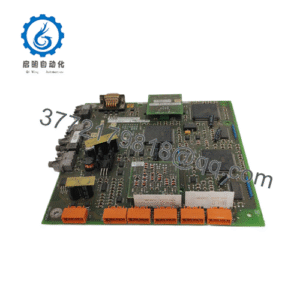
The SST 5136-RE2-PCI is a conventional PCI interface card designed to connect an industrial computer to an Allen-Bradley Remote I/O network. It is intended for legacy PC-based control, supervisory systems, data acquisition, and applications that require direct access to Remote I/O devices.
Its main value today is maintaining an existing architecture without replacing the host application and field network simultaneously. The difficult part of a replacement is usually not the PCI installation; it is preserving the original Remote I/O scanner configuration, driver environment, and I/O mapping.
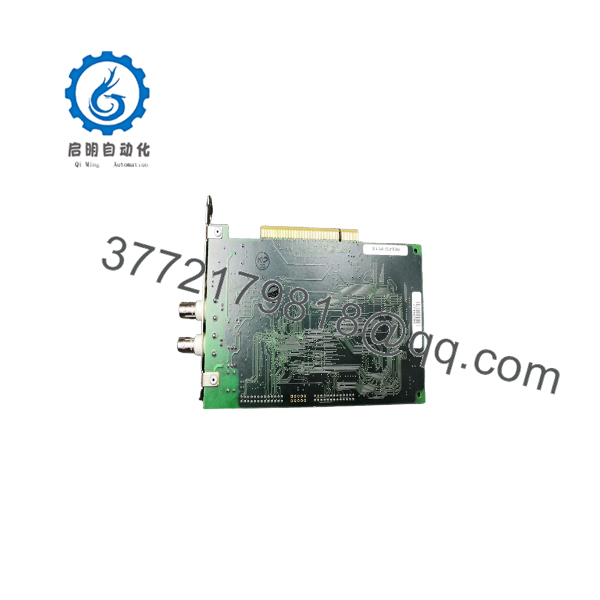
5136-RE2-PCI
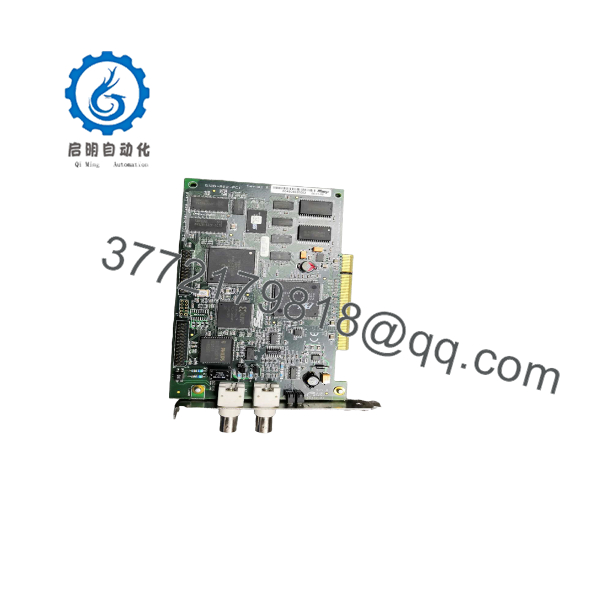
5136-RE2-PCI
Installation & Configuration Guide
Stage 1: Pre-Installation Preparation — Approximately 10 Minutes
⚠️ Safety First: Shut down the industrial PC and follow the site’s electrical isolation procedure. Do not insert or remove the PCI card while the computer is energized.
Tools Required:
- ESD wrist strap
- Phillips screwdriver
- Calibrated digital multimeter
- Wire labels
- Smartphone or camera
- Engineering laptop
- Existing SST software and driver package
- Backup of the PC application and Remote I/O configuration
Data Backup:
- Record the complete 5136-RE2-PCI model number.
- Photograph the existing card.
- Record the PCI slot location.
- Record the host computer model.
- Record the operating-system version.
- Record the SST driver/software revision.
- Save the existing Remote I/O configuration.
- Record scanner configuration.
- Record Remote I/O baud rate.
- Document rack numbers, starting groups, logical racks, and I/O mapping.
⚠️ Do not start by removing the card. Start by backing up the configuration. With legacy PC-based systems, the software environment can be harder to reproduce than the physical hardware.
Stage 2: Removing the Old Card — Approximately 5 Minutes
- Shut down the industrial PC normally.
- Remove power according to the site’s electrical procedure.
- Open the computer chassis.
- Connect the ESD wrist strap.
- Photograph the Remote I/O connector and cable routing.
- Disconnect the network connector.
- Remove the PCI retaining screw.
- Release the PCI card from the motherboard slot.
- Pull the card straight out.
- Inspect the PCI connector and motherboard slot.
⚠️ Do not force an older PCI card. Industrial PCs often use tight retaining brackets and aging motherboard connectors.
Keep the removed card available until the replacement has completed network and application testing.
Stage 3: Installing the New Card — Approximately 5–10 Minutes
- Verify the replacement is 5136-RE2-PCI.
- Compare the board label and revision markings with the original.
- Confirm the industrial PC has a compatible conventional PCI slot.
- Put on the grounded ESD strap.
- Align the card with the PCI connector.
- Press the card firmly and evenly into the slot.
- Secure the PCI bracket.
- Reconnect the Remote I/O cable.
- Confirm the connector is fully seated.
- Close the computer chassis.
Configuration Clone — Critical
Restore the original Remote I/O configuration rather than creating a new configuration from memory.
Verify:
- Scanner/node address
- Remote I/O baud rate
- Rack addresses
- Starting I/O groups
- Logical rack assignments
- Block transfer configuration
- Input/output mapping
- Driver configuration
- Application tag mapping
- PLC communication parameters
Self-Checklist:
- 5136- verified
- PCI slot confirmed
- Operating system documented
- SST driver version documented
- Remote I/O address documented
- Baud rate documented
- Rack configuration backed up
- I/O mapping backed up
- Card fully seated
- Network cable secured
Stage 4: Power-On & Testing — Approximately 10–20 Minutes
- Power up the industrial PC.
- Allow the operating system to boot completely.
- Verify that the PCI card is detected.
- Confirm the SST driver loads without an error.
- Open the applicable SST configuration or diagnostic utility.
- Verify the interface card is recognized.
- Restore the saved Remote I/O configuration.
- Confirm the scanner configuration.
- Verify the Remote I/O network baud rate.
- Scan or communicate with the configured Remote I/O racks.
- Check for communication faults.
- Verify input data.
- Verify output data in a controlled state.
- Confirm the host application receives the expected I/O values.
- Run the machine through an approved functional test.
⚠️ Do not force outputs merely to prove that the card works. Use the site’s commissioning procedure and confirm that an output test cannot unexpectedly energize a motor, valve, actuator, or other final control element.
Technical Pitfalls and Survival Guide
1. Conventional PCI vs. PCI Express
❗ Check the motherboard before ordering. The 5136- is a legacy PCI interface. A newer industrial PC may have only PCI Express slots.
If the replacement PC does not have conventional PCI, you may need a different Remote I/O migration strategy rather than another PCI card.
2. Operating-System Compatibility
Legacy SST interface cards can depend heavily on the original driver environment. Record the exact operating system and SST software version before replacing the hardware.
Do not assume a current Windows installation will recognize a legacy 5136 interface automatically.
3. Remote I/O Configuration
A card can appear healthy while the network remains offline because the scanner configuration is wrong.
Record the original:
- Baud rate
- Scanner address
- Rack assignments
- I/O groups
- Block transfer settings
- I/O image mapping
4. Application Software Dependency
The PCI card may be only one component of the PC control architecture. Check any DLL, OPC, HMI, SCADA, or custom application that calls the SST interface.
Replacing the card without preserving these dependencies can leave the hardware operational but the production application nonfunctional.
5. ESD
Use a grounded wrist strap and handle the PCB by its edges. Avoid touching PCI contacts or exposed circuitry.
Frequently Asked Questions (FAQ)
What is the SST 5136-?
The is an SST PCI-bus interface card for Allen-Bradley Remote I/O networks. It was designed for industrial computers that needed direct Remote I/O communication for supervisory control, data acquisition, or PC-based automation.
Is the 5136- the same as the 5136-DNP-PCI?
No. They serve different networks.
- Allen-Bradley Remote I/O
- 5136-DNP-PCI: DeviceNet
Do not substitute one for the other based on the similar 5136 product-family number.
Can I install the 5136- in a PCIe slot?
Do not assume so. The PCI designation refers to conventional PCI hardware. Verify the motherboard slot type before purchasing.
A PCI-to-PCIe adapter is not automatically an industrially supported substitute. Driver behavior, interrupt handling, bus enumeration, and application compatibility all need to be considered.
Will replacing the card change my Remote I/O configuration?
The replacement card itself should not be treated as a reason to redesign the Remote I/O network. However, configuration must be restored and verified in the new interface environment.
Back up the existing scanner configuration before removing the old card. Record rack addresses, baud rate, I/O mapping, and application settings.
What should I check if the new card is detected but the Remote I/O network does not communicate?
Start with the physical and configuration layers:
- Confirm the Remote I/O cable.
- Verify network termination.
- Confirm baud rate.
- Check scanner address.
- Verify rack configuration.
- Confirm the SST driver is correct.
- Check the operating-system environment.
- Verify the application is using the correct interface.
Do not immediately assume the replacement card is defective.
Is the 5136- obsolete?
It should be treated as legacy interface hardware for lifecycle planning. The larger concern is that the card depends on a conventional PCI host and a legacy software environment.
If the industrial PC is already obsolete, maintaining a spare 5136- may be appropriate as a short-term strategy, while a longer-term migration plan should address the Remote I/O network and host application separately.
What condition should I specify when ordering?
Specify the condition explicitly:
- New Original / New Surplus
- Factory Sealed
- Refurbished / Tested
For a critical spare, request photographs of the actual card, including the model label, PCB markings, connector, and revision information. If the supplier claims functional testing, request the test report for the actual unit.
What information should I provide when requesting a replacement?
Provide:
- Part number: 5136-
- Host computer model
- PCI slot type
- Operating system
- SST driver/software version
- Remote I/O baud rate
- Scanner address
- Rack configuration
- I/O mapping
- Application software
- Required condition
The key procurement question is not simply whether a supplier has a in stock. The replacement must also fit the host PCI architecture, driver environment, Remote I/O configuration, and existing application software.