 WhatsApp: +86 16626708626
 Email:
  Phone: +86 16626708626
Description
Key Technical Specifications
| Parameter | Value |
|---|---|
| Manufacturer | Siemens |
| Order Number | 6ES7716-2CA10-0CA4 |
| Product Family | SIMATIC PC 677B |
| Product Type | Industrial PC |
| Application | Industrial automation / HMI / SCADA / engineering |
| Mounting | Industrial cabinet / rack installation |
| Operating System | Configuration-dependent |
| Processor | Configuration-dependent; verify nameplate |
| RAM | Configuration-dependent |
| Storage | Configuration-dependent |
| Display Interface | Configuration-dependent |
| Industrial Interfaces | Configuration-dependent |
| Power Supply | Configuration-dependent |
| Operating Temperature | Configuration-dependent |
| Expansion | Configuration-dependent |
Procurement note: Do not infer the processor, RAM, HDD/SSD, operating system, or installed interface cards from the base PC 677B family name alone. Siemens supplied multiple hardware configurations under the SIMATIC PC 677B platform.
For a replacement, the safest identification method is the complete Siemens MLFB/order number on the chassis label, together with the hardware revision and any installed expansion cards.
Product Introduction
The Siemens 6ES7716-2CA10-0CA4 is a SIMATIC PC 677B industrial computer intended for automation environments such as HMI, SCADA, visualization, engineering, and supervisory control applications. It belongs to Siemens’ SIMATIC industrial PC portfolio and was designed for installation in industrial control systems.
For legacy systems, the complete order number matters. PC 677B units can differ substantially in processor, memory, storage, operating-system image, and expansion hardware. Match the installed configuration before purchasing a replacement rather than selecting solely by the PC 677B family designation.
Installation & Configuration Guide
Stage 1: Pre-Installation Preparation — Approximately 15 minutes
⚠️ Safety First: Shut down the industrial PC through the operating system where possible, isolate the cabinet power, apply lockout/tagout as required, and verify that hazardous voltage has been removed.
Tools Required:
- ESD wrist strap
- Multimeter
- Screwdriver set
- Cable labels
- Camera/smartphone
- Backup media
Data Backup:
- Record the complete 6ES7716-2CA10-0CA4 order number.
- Photograph the PC nameplate and hardware labels.
- Record BIOS and operating-system versions.
- Back up HMI/SCADA project files.
- Back up PLC communication configuration.
- Document IP addresses and network settings.
- Record installed PCI/PCIe or other expansion hardware.
- Identify the storage device and its image/partition configuration.
⚠️ If the PC is running WinCC, STEP 7, third-party SCADA software, or proprietary plant software, back up the application environment before replacing the computer. The hardware replacement itself does not guarantee software compatibility.
Stage 2: Removing the Old Industrial PC — Approximately 10 minutes
- Shut down Windows or the installed operating system normally.
- Isolate cabinet power.
- Verify the power supply is de-energized.
- Label Ethernet, serial, USB, display, and other connected cables.
- Photograph the complete rear-panel connection arrangement.
- Disconnect the cables without pulling on connectors.
- Release the rack/cabinet mounting hardware.
- Carefully remove the PC.
- Inspect connectors and mounting hardware for physical damage.
⚠️ Keep the original PC available until the replacement has passed functional testing. It may contain application licenses, hardware-specific drivers, or configuration information that is difficult to reproduce.
Stage 3: Installing the Replacement — Approximately 15 minutes
- Verify the complete MLFB: Confirm that the replacement is 6ES7716-2CA10-0CA4.
- Compare the chassis and rear-panel configuration with the original unit.
- Verify installed expansion cards.
- Install the PC in the cabinet/rack.
- Secure all mounting hardware.
- Reconnect power.
- Reconnect Ethernet and industrial communication cables.
- Reconnect display and peripheral devices.
- Verify protective grounding.
- Check that ventilation openings remain unobstructed.
Configuration Clone — Crucial:
Before booting into production, document:
- BIOS configuration
- Boot-device priority
- IP address
- Subnet mask
- Gateway
- Computer name
- Network adapter settings
- Installed Siemens software
- HMI/SCADA runtime configuration
- PLC communication parameters
Stage 4: Power-On & Testing — Approximately 15–30 minutes
- Energize the PC.
- Confirm normal POST/BIOS operation.
- Check for hardware alarms or diagnostic messages.
- Confirm the operating system boots correctly.
- Verify Ethernet adapters.
- Check the configured IP address.
- Test communication with the automation network.
- Start the HMI/SCADA application.
- Verify PLC communication.
- Test representative screens, alarms, trends, and operator functions.
⚠️ Do not return the system to automatic production solely because Windows starts successfully. Verify the complete communication path between the industrial PC and the PLC/DCS/remote I/O system.
If the PC boots but the automation application fails, investigate software licensing, driver versions, network configuration, application paths, and database/runtime dependencies before changing PLC-side parameters.
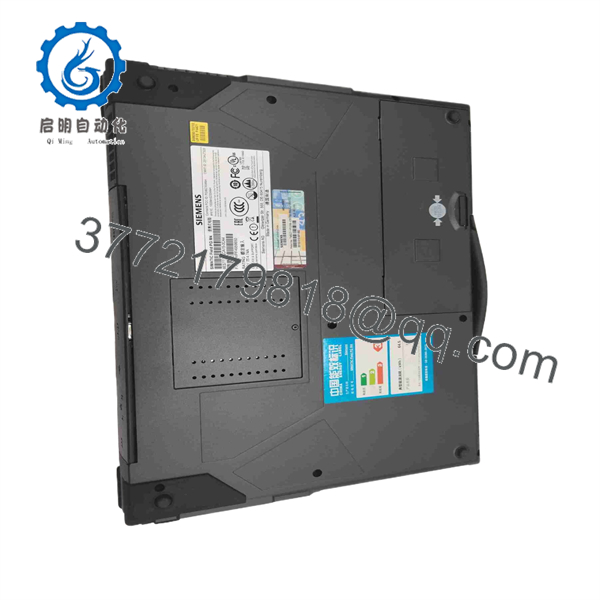
6ES7716-2CA10-0CA4
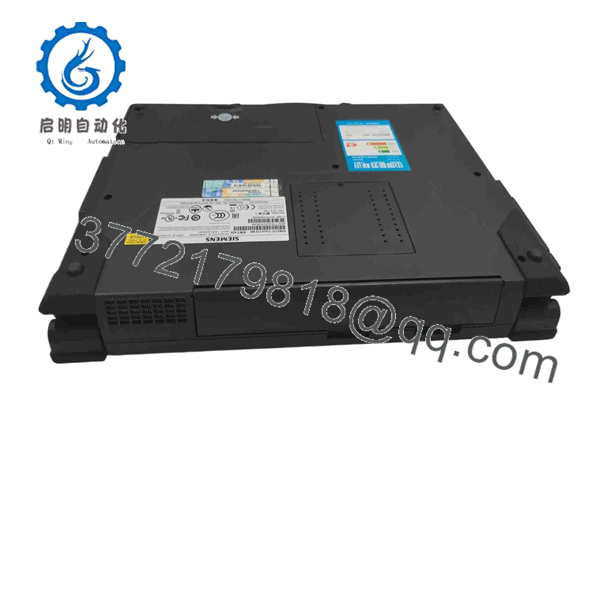
6ES7716-2CA10-0CA4
Frequently Asked Questions (FAQ)
Is 6ES7716-2CA10-0CA4 a Siemens PLC?
No. It is associated with the SIMATIC PC 677B industrial PC platform, rather than being a conventional S7 PLC CPU. Its role is industrial computing, such as HMI, SCADA, visualization, or engineering.
Is 6ES7716-2CA10-0CA4 obsolete?
It is a legacy SIMATIC PC 677B order number. For procurement, treat availability as configuration-specific and verify the physical unit and its hardware revision. A modern Siemens industrial PC should not be assumed to be a direct drop-in replacement.
Can I replace it with another SIMATIC PC 677B?
Potentially, but the complete order number must be checked. Processor, RAM, storage, operating system, expansion cards, and interface configuration can differ between PC 677B variants.
Will replacing the PC erase my STEP 7 or WinCC project?
Replacing the hardware does not inherently erase the project stored elsewhere, but the original PC may contain the only local copy of application files, licenses, drivers, or runtime configuration. Back up the entire software environment before removing the old computer.
Can I use a modern PC as a replacement?
Yes, depending on the application, but this becomes a migration project rather than a simple hardware swap. Check the installed STEP 7/WinCC version, operating-system requirements, communication drivers, license mechanism, interface hardware, and storage/application dependencies before changing platforms.
Why does the exact 6ES7716 order number matter?
Because the SIMATIC PC 677B platform was available in multiple configurations. The complete MLFB identifies the specific ordering variant. For a procurement replacement, compare the complete order number and physical configuration rather than purchasing a unit described only as “Siemens PC 677B.”
Is a used or surplus 6ES7716-2CA10-0CA4 suitable for production?
It depends on condition. For a legacy system, a tested surplus unit can be useful, but request photographs of the nameplate, hardware configuration, BIOS/boot screen, storage condition, and functional test results. For a production-critical installation, also consider keeping a tested spare because sourcing legacy industrial PCs can become difficult.